
Help center / Payments & money
The Payments page
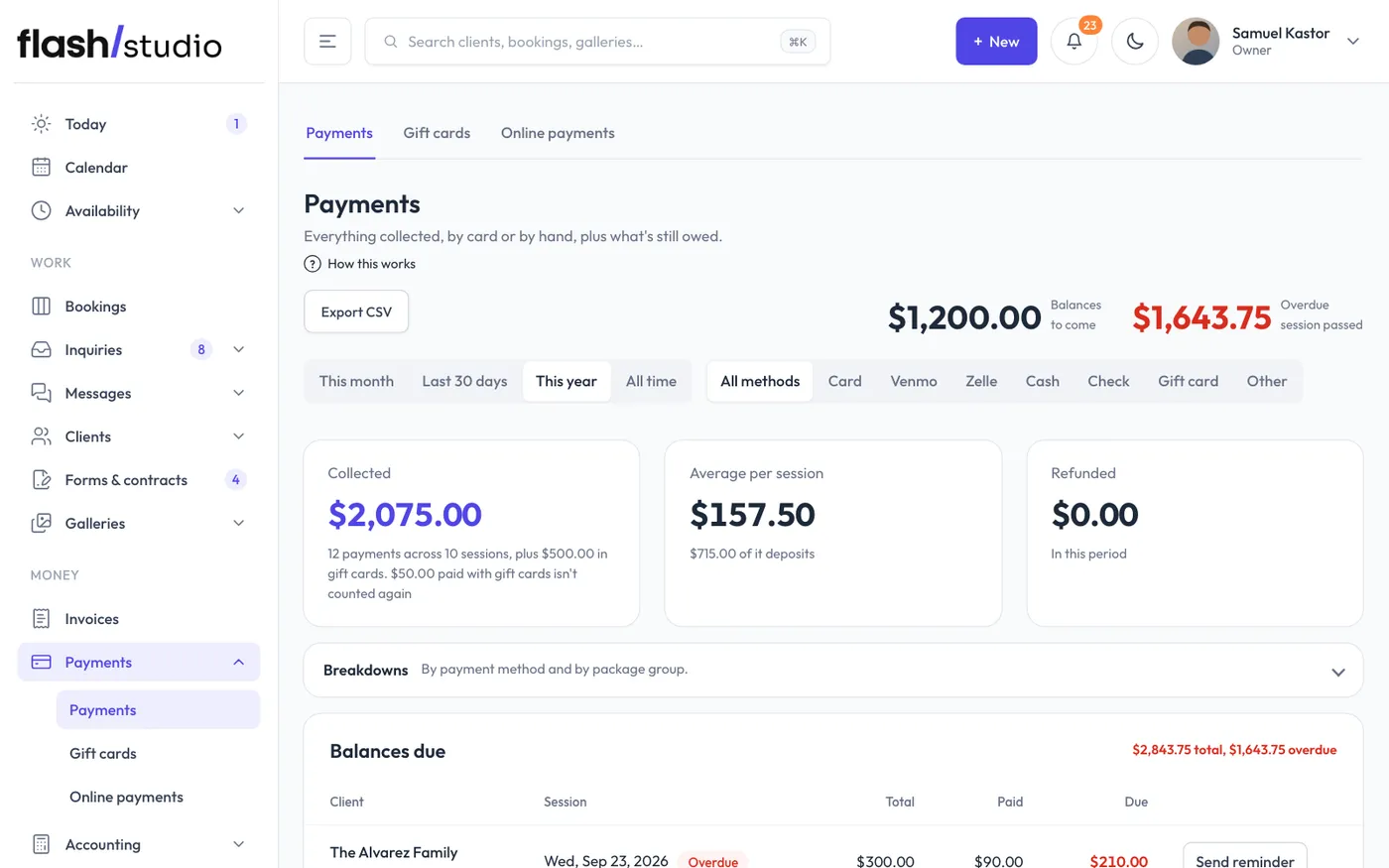
See what you've collected, what's still owed, and every transaction, and export them.
Go to Payments. Only owners and admins can see it. The tabs across the top lead to Gift cards and Online payments. Invoices and Accounting have their own places in the menu, and proposals are under Inquiries > Proposals.
Filters
- Date range: This month, Last 30 days, This year (the default) or All time.
- Payment method: All methods, Card, Venmo, Zelle, Cash, Check, Gift card or Other. With Gift card picked, the first number shows Paid with gift cards instead of Collected, since that money counted when the cards were sold.
The numbers
- Collected: everything paid in the period, less refunds, counted on the day it was paid. It includes gift cards sold online. Money paid with a gift card isn't counted again, since the card counted when it was sold.
- Average per session: collected from bookings, divided by the number of sessions paid for, and how much of it was deposits.
- Balances to come: what's owed on sessions that haven't happened yet. When some sessions have passed with money still owed, this shows Overdue instead, with how much more is still to come.
- Refunded: refunds in the period.
Click Breakdowns to see By payment method and By package group: where the money came from.
Balances due
Every confirmed or completed booking that still owes money, with its total, paid and due amounts. Sessions that have passed are marked overdue. Click the client's name to open the booking, or Send reminder to email them a reminder with a link to pay (see Send a balance payment link or reminder).
Transactions
The latest payments, newest first: date, client, session, type (deposit or balance), method, status and amount. Refunds show under the amount. Card payments a client has started but not finished show as pending.
The Reference column shows Stripe ↗ for card payments, which opens the payment in your Stripe dashboard, or your note (or "recorded by hand") for payments you recorded.
The list shows up to 300. Use Export CSV for all of them.
Export CSV
Export CSV downloads every paid and refunded payment from the start of the date range you picked, with client, email, package, package group, session date, type, method, status, amount, refunded, net, the Stripe payment ID and your note. Each line is dated by the day the money came in, in your studio's time zone. Gift cards sold online are included too.
Online payments
The Online payments tab opens your Stripe connection status, and the settings for tips, bank transfers and sales tax. If Stripe isn't connected, a note at the top of the page says so. See Connect Stripe to take payments.