
Help center / Payments & money
Invoices
Bill a client for extras like an album or more time, or for what they already owe, with a pay page and a PDF.
An invoice gives your client a page under your name with what they're paying for, a button to pay by card and a PDF for their records. Only owners and admins can make invoices.
Every invoice goes with a booking
That way the session's balance always adds up. Prints or an album for a past client go on their last session. For someone new, book their session by hand first, then invoice it.
Make one
Start from any of these:
- Invoices, then New invoice.
- + New at the top of any page, then Invoice.
- On a booking, in the Money card, click New invoice for this booking. The booking is picked for you, and when something is owed the first line starts as "Remaining balance".
Then:
- Pick the Booking. Confirmed and completed bookings are listed. Under it you'll see what the client owes on that booking now.
- Choose What it's for:
- Extras: adds to the session total, for an album, prints or more time. The booking's total goes up by the invoice's total.
- What they already owe (the total stays the same), to send a bill for the balance.
- Fill in up to five lines, each with a Description, Qty and Price each. Empty lines are left out.
- Optionally pick a Due date and write a Note to the client.
- Leave Email it to the client now ticked to send it straight away, or untick it to send it later.
- Click Create invoice.
An invoice needs to be at least $0.50, the smallest card payment. Invoices are numbered in order: INV-0001, INV-0002 and so on.
What your client gets
The email says the invoice number, the total and the due date, with your note and a button to view and pay it. Their pay page shows each line and the total, a button to pay the amount by card, and Download PDF. Card payments go to your own Stripe account.
When they pay, the payment lands on the booking, the balance goes down, the invoice is marked paid and you get a notification.
On the invoice's page
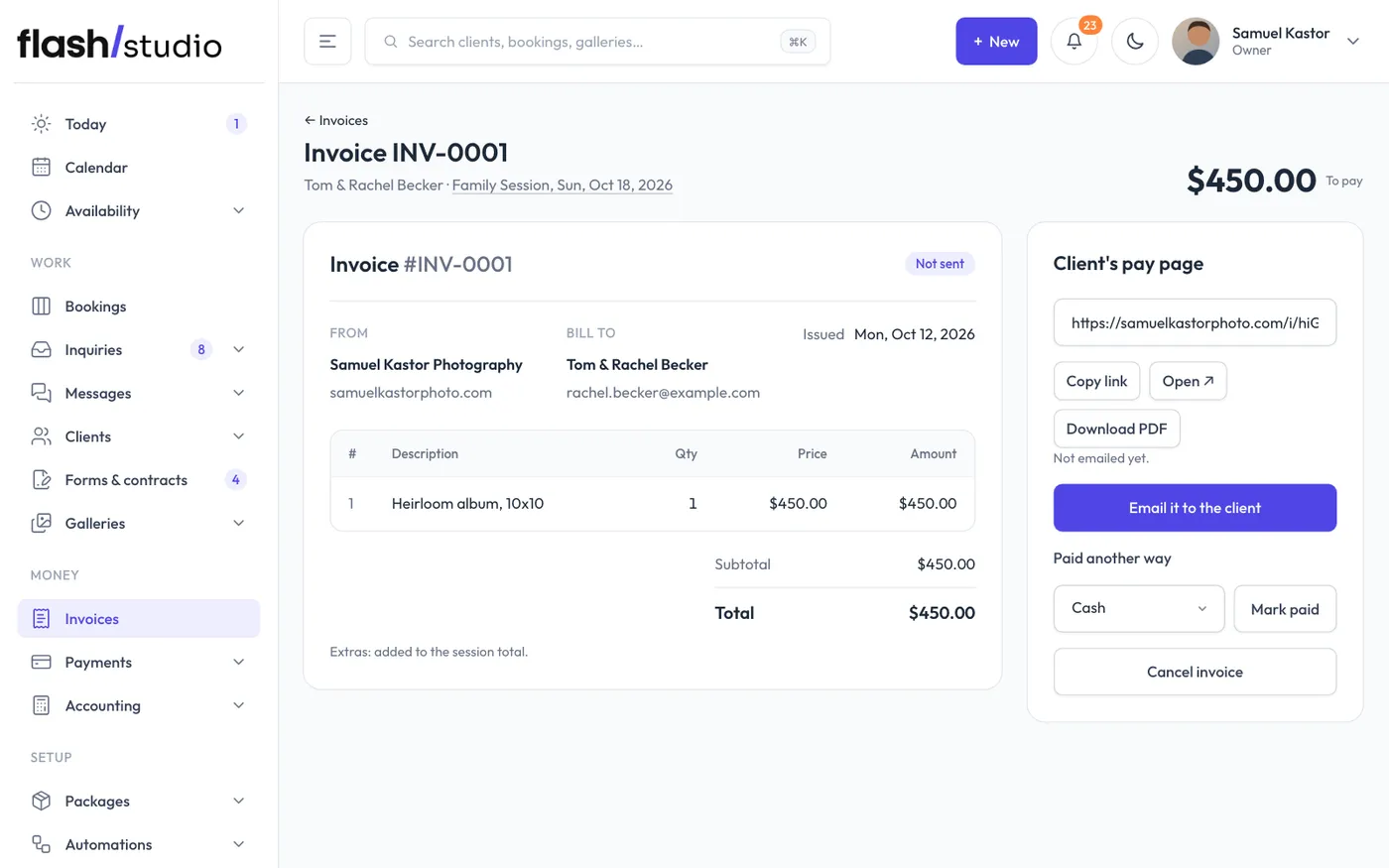
- Client's pay page: copy the link, Open ↗ it, or Download PDF.
- Email it to the client, or Email it again if you've sent it before.
- Paid another way: pick Cash, Venmo, Zelle, Check or Other and click Mark paid. This records the payment on the booking and marks the invoice paid.
- Cancel invoice (click twice): the pay page stops working. If it was for extras, its total comes back off the booking's total.
A paid invoice can't be cancelled. To give money back, refund the payment from the booking (see Refunds).
The Invoices list
Invoices shows how many invoices are open and how much is waiting to be paid. Switch between Open, Paid and All. Each invoice shows its client, booking, total, due date and status: open, overdue (the due date has passed), paid or cancelled. Open ones not emailed yet say not sent.
Without Stripe
You can still make and send invoices. Your client sees a note that you'll tell them how to pay, and you mark the invoice paid when the money comes in. See Connect Stripe to take payments.