
Scenes, photo numbers and bulk tools
Split a gallery into scenes, and set scenes or delete photos for many photos at once, across pages.
Scenes split a gallery into tabs for your client, like Getting ready, Ceremony and Portraits. Tabs appear in the order their first photo appears in the gallery. Your client also sees an All tab with every photo.
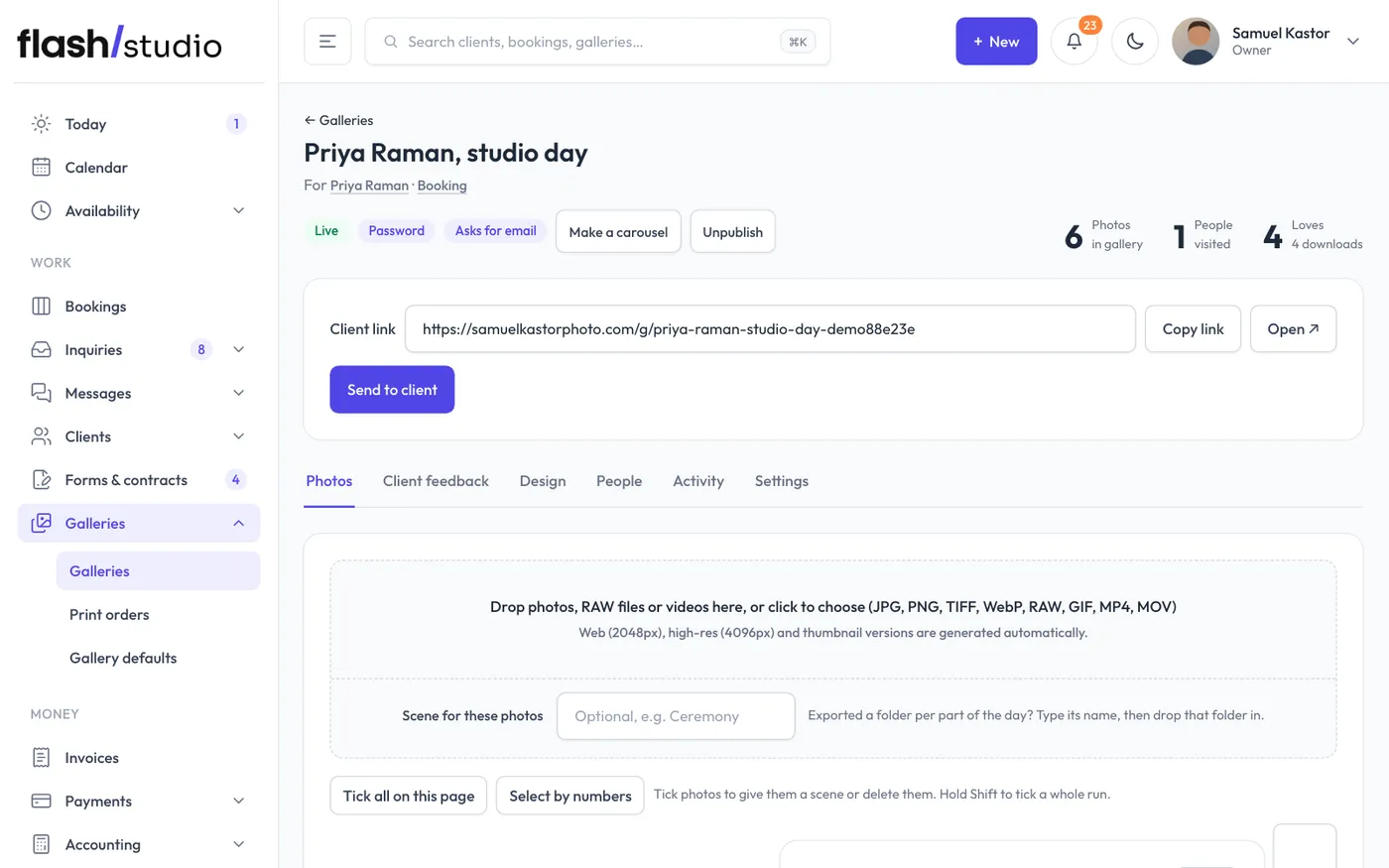
Set a scene while you upload
If you export a folder for each part of the day, this is the quickest way.
- On the Photos tab, type the scene in Scene for these photos at the bottom of the upload box, like Ceremony.
- Drop in that folder's photos.
- When the upload finishes, change the scene and drop in the next folder.
The scene typed when an upload starts goes with every photo in that upload. Changing it later only affects the next upload.
Set a scene for photos already uploaded
- Choose the photos (see below). A bar opens at the bottom of the screen.
- Type a name in Scene (up to 40 characters). Names you've used before are suggested.
- Click Set scene.
To take photos out of their scene, choose them and click Take out of scene. They go back to having no scene.
Choosing photos
Every photo on the Photos tab has a number, in gallery order. Big galleries show 200 photos per page, but the numbers carry on across pages. You can choose photos in several ways:
- Tick photos with the box on each one.
- Hold Shift and tick another photo to tick every photo in between, like a file list.
- Tick all on this page, above the photos, ticks (or unticks) every photo on the current page.
- Select by numbers, above the photos, opens the bar so you can type a range in Photos (by number), like 121 to 310. A range can span pages, so you don't need to tick anything.
- All N in this gallery (with your photo count), in the bar, picks every photo, on every page.
Once anything is chosen, the tools (Scene, Set scene, Take out of scene, Delete) show in a bar along the bottom of the screen. Clear unticks everything and hides it.
A range or All wins over ticks. After a change, a message says how many photos were updated.
Rename or remove a scene
Each scene is listed with its photo count. Click a scene to Rename it or Remove scene. Removing a scene doesn't delete any photos; they just go back to having no scene.
Delete many photos
Choose photos the same way, then click Delete in the bar and click again to confirm. This works with ticks, a range, or All N in this gallery. The photos move to the trash, where you can restore them for 30 days. Only owners and admins can delete photos. See Delete photos and galleries.
Organize in one go
Click Organize above the photos, at the right.
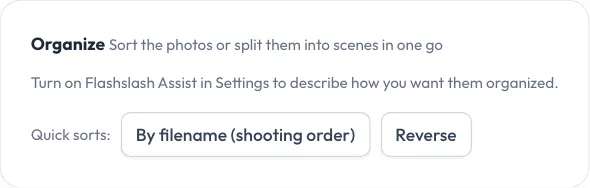
- By filename (shooting order) puts the photos in the order your camera numbered them (IMG_9 before IMG_10).
- Reverse turns the order around.
- With Flashslash Assist on, describe what you want, like "Split into getting ready, ceremony, portraits and reception", and click Organize. Assist looks at the photos and sorts them into scenes. In a very big gallery it looks at an even sample in shooting order and marks where each scene starts.
Every organize can be undone: click Undo last organize to put back the order and scenes from before.