
Design a gallery: templates, cover, colors, fonts and layout
Use a gallery's Design tab to pick a template, the cover and its focus point, colors matched to your photos, fonts, buttons and the photo grid.
Every gallery has a Design tab. Your choices show straight away in a preview of the real gallery, with its own photos, and save as you go. On a published gallery, your client sees each change as soon as it's saved. Click Undo to step back.
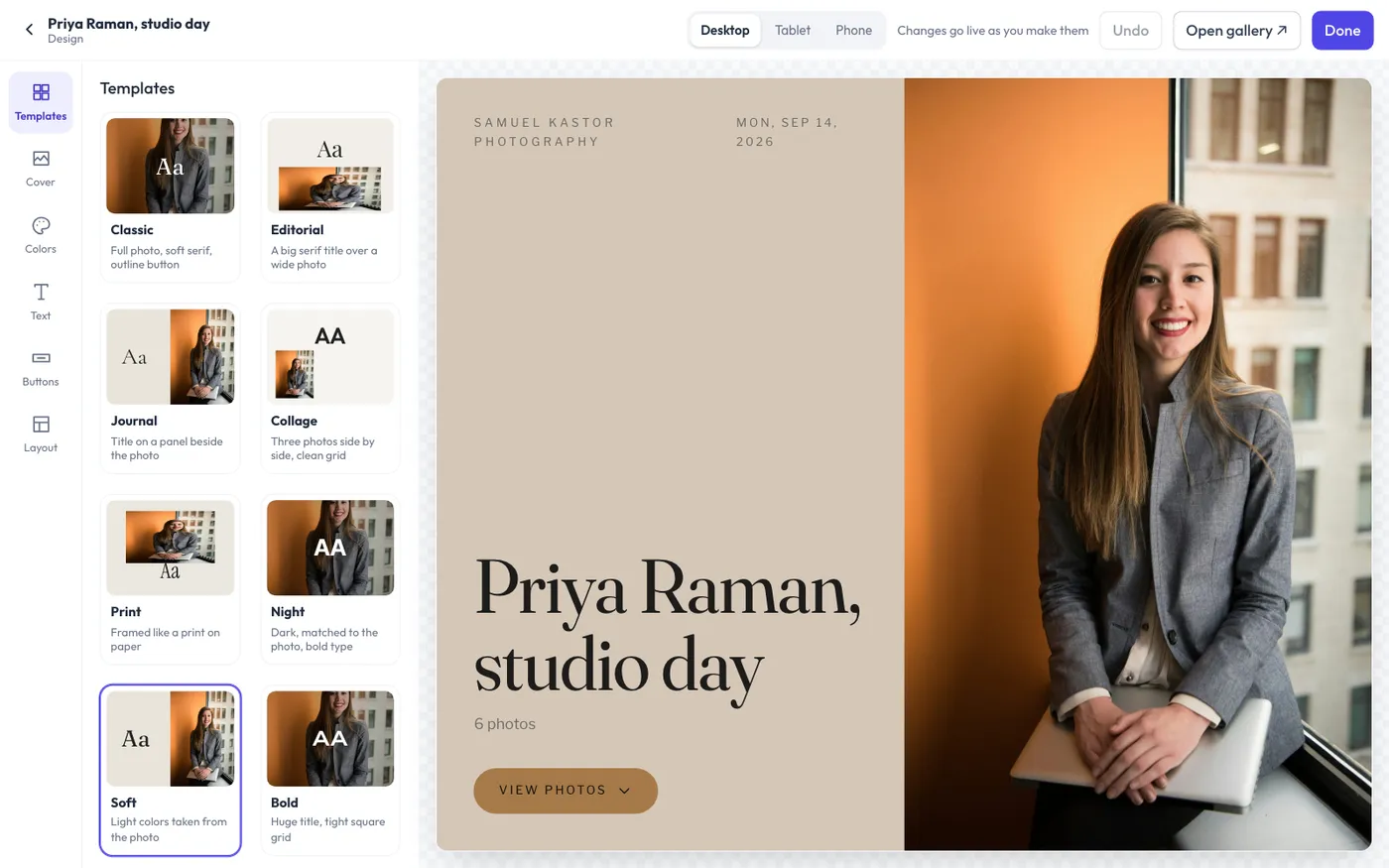
Switch the preview between Desktop, Tablet and Phone, and click Open gallery to see it the way your client does.
Templates
A template sets the whole look in one click: the cover, the fonts, the buttons and the grid. There are eight: Classic, Editorial, Journal, Collage, Print, Night, Soft and Bold. Pick one, then change anything you like on the other tabs.
Cover
- Cover style
- Full photo: the photo fills the screen, with the title across it.
- Split: the title on a color panel beside the photo.
- Minimal: the title on its own, with the photo below.
- Collage: the title above three photos side by side (the cover and the next two).
- Frame: the photo framed like a print on paper, with the title under it.
- Cover photo: click any photo to use it. You can also click Set cover on the Photos tab.
- Focus point: click the part of the photo that should stay in view when it's cropped, like a face. Phones crop more than computers, so this matters most there.
Colors
Under Colors from, choose one of three:
- A theme: your studio's gallery colors, your website's colors, or one of the presets. Each shows its page, text and accent colors.
- Cover photo: Flashslash takes the colors from your cover, so every gallery looks made for its photos. Choose a Light, Dark or Auto mood (Auto goes dark for a dark photo) and how strong the color is. Under Page color from and Accent from, pick any of the photo's main colors, or leave Auto for Flashslash's choice.
- My colors: your own page, text and accent colors. Click a circle to pick, or type a color code. Start from my cover's colors fills them in from the photo.
Text always stays easy to read: if a color would make it hard, clients see dark or light text instead.
Text
Choose what shows on the cover (your studio name, the date, the number of photos), the title's font, weight and size, all capitals, and whether the title is centered or on the left. There are over 50 title fonts, grouped into Serif, Sans, Script and Mono, each shown in its own face. Scripts suit a name or a short title best, without all capitals. On the Full photo cover you can also put the title at the bottom.
Buttons
The button on the cover: its Shape (pill, rounded, square or a simple line), its Style (outline, solid in your accent color, or glass) and its text, like "View photos".
Layout
- Photo layout: Masonry (columns of photos at their own shapes), Rows (even rows, each photo at its own width) or Square grid (same-size squares).
- Columns on a computer: Auto, or 2 to 6. Your client can still make photos bigger or smaller.
- Space between photos and Rounded corners.
The welcome note above the photos is on the Settings tab.
Scenes
Scenes split a gallery into tabs, like Getting ready, Ceremony and Portraits. See Scenes, photo numbers and bulk tools.