
Create a gallery
Start a gallery from a booking, from a client's page, or on its own, and choose its settings.
A gallery is where you deliver photos to a client. You create it, add photos, and publish it when you're ready. Until then it's a draft and nobody else can open it.
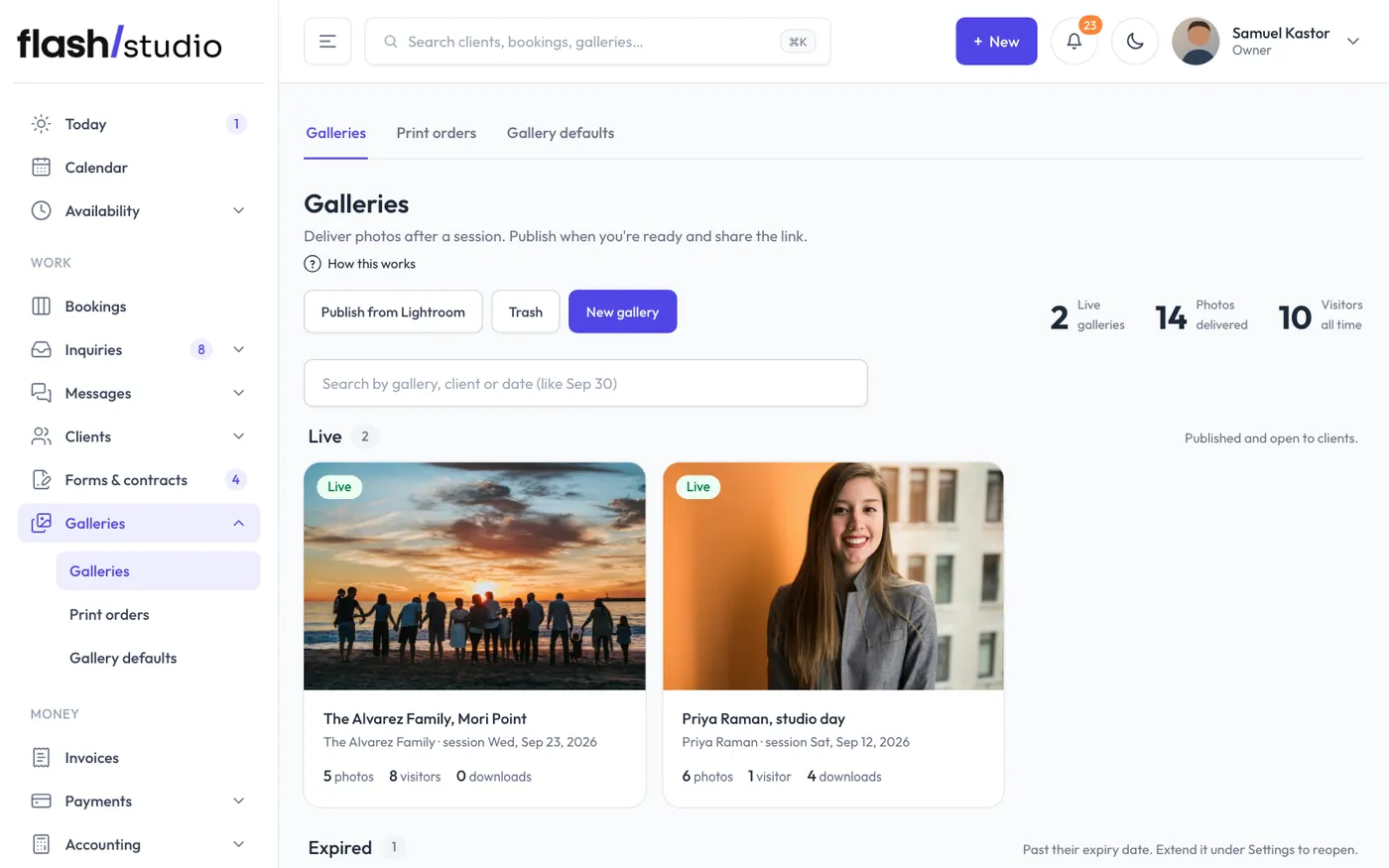
Three ways to start one
- From a booking. Open the booking and click New gallery on its Galleries card. The title and client email are filled in for you, and the gallery is linked to the booking.
- From a client. Open the client under Clients and click New gallery. The title and email come from the client record.
- On its own. Go to Galleries and click New gallery.
The form
A new gallery only needs a Title, like "Maya & Jordan, Lands End". The rest starts from your gallery defaults (see Gallery defaults and templates).
- Client email (expiry reminders go here). Used for the expiry reminders and as the address the gallery email goes to.
- Booking. Shown when you didn't start from a booking. Pick one of the client's bookings (or a recent booking) to link the gallery to it. A linked booking is what lets you lock downloads until the balance is paid.
- Start from. If you've saved gallery templates, pick Gallery defaults or one of your templates at the top of the page.
Click More options to change anything else before you create it. The settings are grouped as Who can open it, Downloads, Selling photos and How it looks. You can change all of them later.
Click Create & add photos. You land on the gallery's page, ready to upload.
The gallery's page
Every gallery has six tabs: Photos, Client feedback, Design, People, Activity and Settings. A gallery opens on Photos, or on Client feedback once clients have left some. Change how it looks on the Design tab (it saves as you go), and everything else on the Settings tab (click Save settings when you're done).
Finding your galleries
Galleries groups your galleries into Drafts, Live and Expired, with photo, visitor and download counts on each card. Use the search box to find one by title or client. Without a search, the page shows your newest 300 galleries; search and press Enter to look through all of them.