
Gallery defaults and templates
Set how every new gallery starts, and save templates for different kinds of shoots.
Gallery defaults
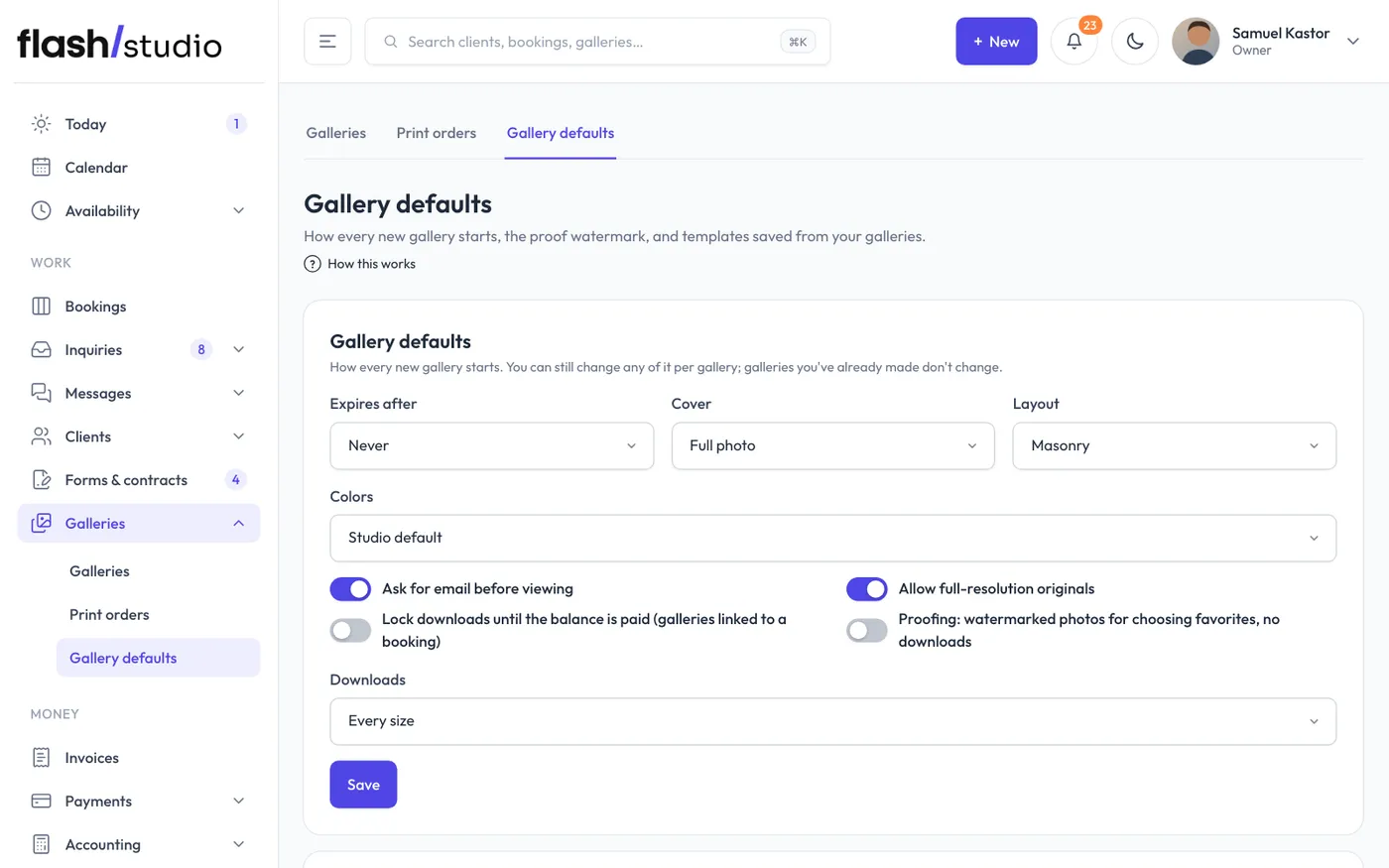
Go to Galleries > Gallery defaults. These settings are how every new gallery starts:
- Expires after: Never, or 30 to 365 days after the gallery is made.
- Cover, Layout and Colors.
- Ask for email before viewing, Allow full-resolution originals, Lock downloads until the balance is paid (galleries linked to a booking) and Proofing: watermarked photos for choosing favorites, no downloads.
- Downloads: Every size, Web size only, or No downloads (view only).
Click Save. You can still change anything on each gallery. Galleries you've already made don't change.
The same page has your studio's gallery colors, in the Client galleries card. They're the A theme choice on each gallery's Design tab.
Gallery templates
Templates are for studios whose galleries differ by kind of shoot, say one for weddings and one for minis.
To save one:
- Set up a gallery the way you like it.
- On its Settings tab, type a name in Save these settings as a template, to start new galleries from, like Wedding.
- Click Save template.
A template keeps the gallery's expiry (as a number of days), who can open it, download settings, proofing, look, picks limit and welcome note. It doesn't keep the title, client, password, download PIN or prices. Saving with a name you've already used replaces that template. You can keep up to 20.
To use one, click New gallery and pick the template next to Start from at the top of the page. Gallery defaults goes back to your defaults.
To delete a template, go to Galleries > Gallery defaults and click Delete next to it under Gallery templates.