
Help center / Payments & money
Manage gift cards
Add a gift card by hand, check what's left on each card, resend one, or cancel it.
Everything about your gift cards is on Payments > Gift cards.
Add a gift card by hand
For one you sold in person, a thank-you or a giveaway prize. This works without Stripe.
- Under Add a gift card by hand, enter the Amount ($), from $1 to $10,000.
- Enter who it's For and, to email it to them, Their email.
- From is your studio name unless you type another. Add a Message (optional) if you like.
- If someone paid you for it, enter what they paid in They paid ($, optional). Leave it empty for a gift.
- Leave Email the card to them now ticked to send it straight away, or untick it to give them the code yourself.
- Click Add gift card.
You'll see "Added gift card" and the new code at the top of the page.
What you enter in They paid is added to your income on Accounting on its own, so don't add it there again. A card added by hand with nothing in They paid isn't counted as income.
See balances
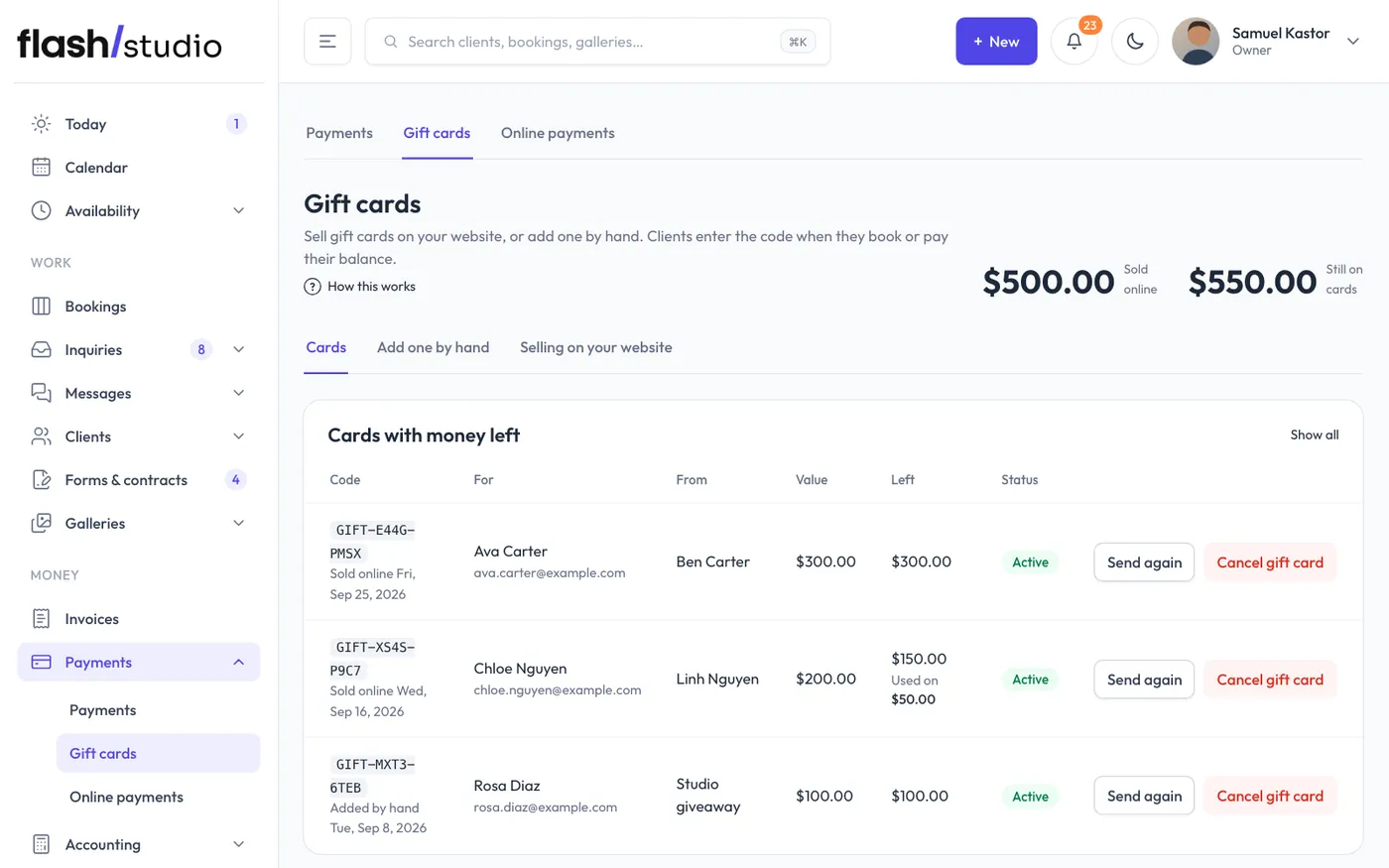
The top of the page shows Sold online (all time) and how much is Still on cards across every active card.
The list shows Cards with money left. Click Show all to include used-up and void cards. Each card shows:
- Its code, and whether it was sold online or added by hand, with the date
- Who it's for (with their email), and who it's from
- Goes out and a date, for a card bought to be sent on a later day
- Its value and what's Left
- Up to two bookings it was used on, linked, and how many more
- Its status: active, used up or void
Send it again
If the recipient lost their email, click Send again on the card. It goes to the recipient email on the card, right away. A card with no email can't be sent.
Cancel a card
Click Cancel gift card, then click again to confirm. The card can't be used anymore. Anything already spent stays spent on those bookings.
Money going back on a card
If a client paid part of a booking with a gift card and the booking is cancelled, the money goes back on the card as you cancel (leave that box ticked). You can also put it back from Money on the booking. See Refunds.