
Help center / Account & billing
Publish from Lightroom Classic
Install the Flashslash plugin, connect it with an access token, and publish collections straight into a gallery.
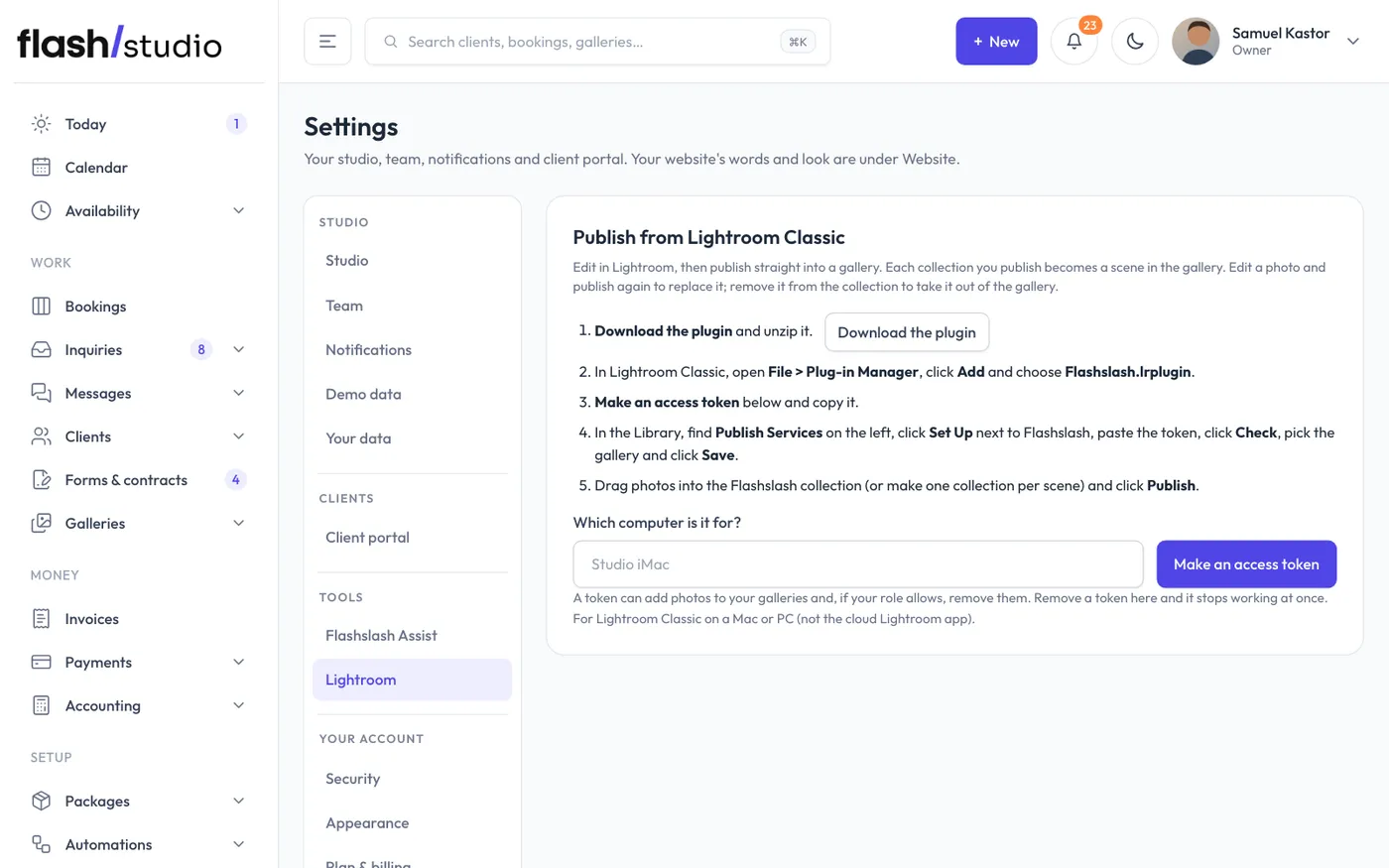
Edit in Lightroom Classic, then publish straight into a Flashslash gallery without exporting and uploading by hand. Each collection you publish becomes a scene in the gallery.
Set it up once
- In Flashslash, go to Settings > Lightroom (or click Publish from Lightroom at the top of Galleries) and click Download the plugin. Unzip it.
- In Lightroom Classic, open File > Plug-in Manager, click Add and choose Flashslash.lrplugin.
- Back in Flashslash, type which computer it's for and click Make an access token. Copy the token. It's only shown once.
- In Lightroom's Library, find Publish Services on the left and click Set Up next to Flashslash.
- Paste the token and click Check. Pick the gallery to publish to, then click Save.
Publish
Drag photos onto the Flashslash collection, or make a collection for each part of the day (each one becomes a scene, named after the collection). Click Publish.
- Edit and republish: change a photo, and Lightroom marks it to republish. Publishing again replaces it in the gallery.
- Remove: take a photo out of the collection and publish, and it moves to the gallery's trash (if your role can delete photos). You can restore it for 30 days. See The trash.
Make a separate publish service for each gallery you deliver from Lightroom.
Tokens
Your tokens are listed under Settings > Lightroom, with when each was last used. Click Remove and that token stops working at once. Someone removed from your team can't use theirs either.
Still have a question? support@flashslashapp.com