
Automate emails and reminders with workflows
Send emails, forms and reminders on their own at the right moment of each booking, starting from a ready-made workflow.
A workflow is a list of steps that run on their own for each booking: an email to the client, a form to fill in, or a reminder for you. Each step happens at a moment you choose, like a week before the session or when the gallery is delivered. Owners and admins set them up on Automations > Workflows.
Start a workflow
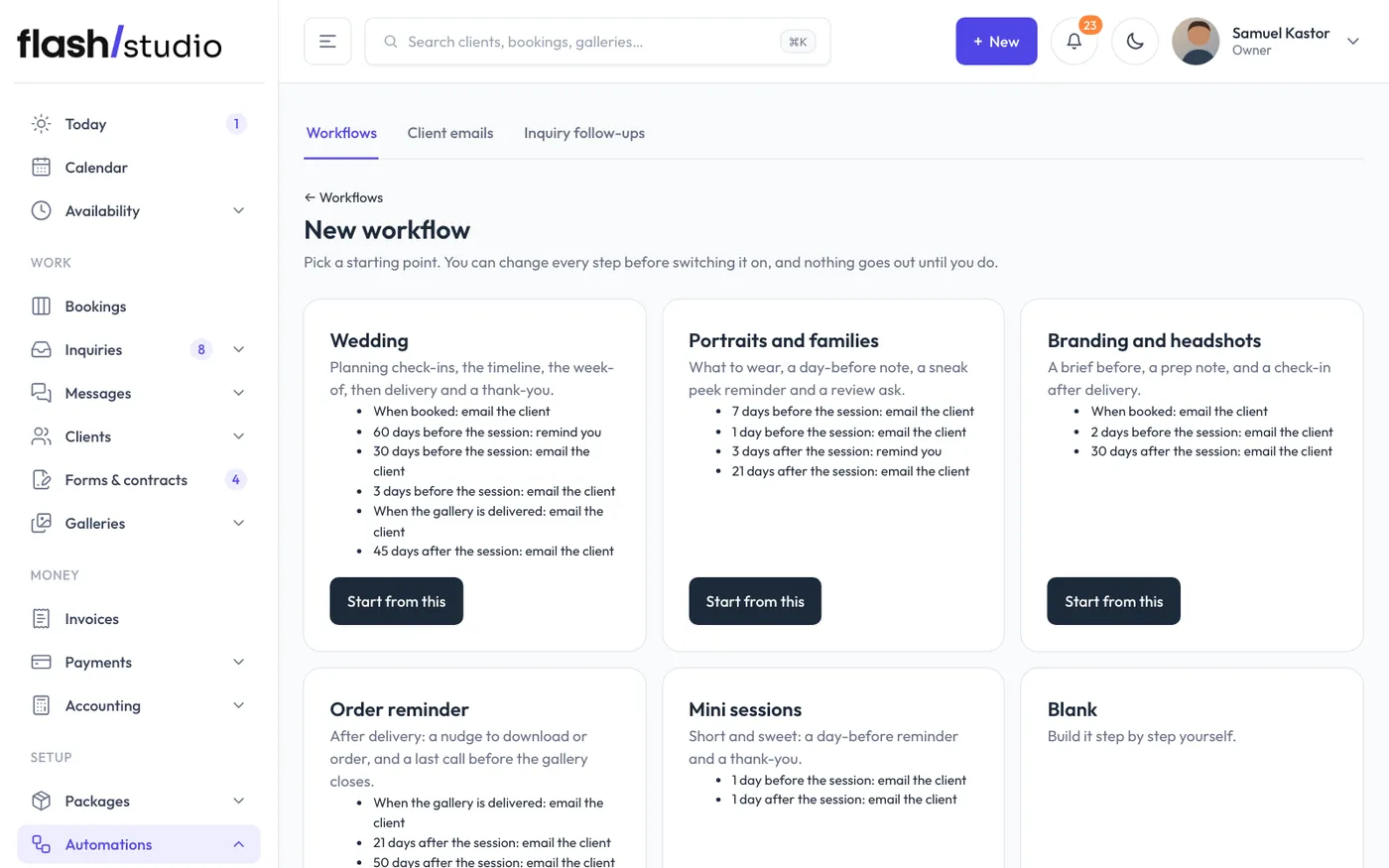
- Go to Automations > Workflows and click New workflow.
- Pick a starting point and click Start from this:
- Wedding: planning check-ins, the timeline, the week-of, then delivery and a thank-you.
- Portraits and families: what to wear, a day-before note, a sneak peek reminder and a review ask.
- Branding and headshots: a brief before, a prep note, and a check-in after delivery.
- Order reminder: after delivery, a nudge to download or order, and a last call before the gallery closes.
- Mini sessions: a day-before reminder and a thank-you.
- Or click Start blank to build it yourself. With Flashslash Assist on, you can also describe what you want under Describe it to the AI and click Draft it.
Every new workflow starts switched off. Read the steps over and change anything before you switch it on.
Choose which bookings it's for
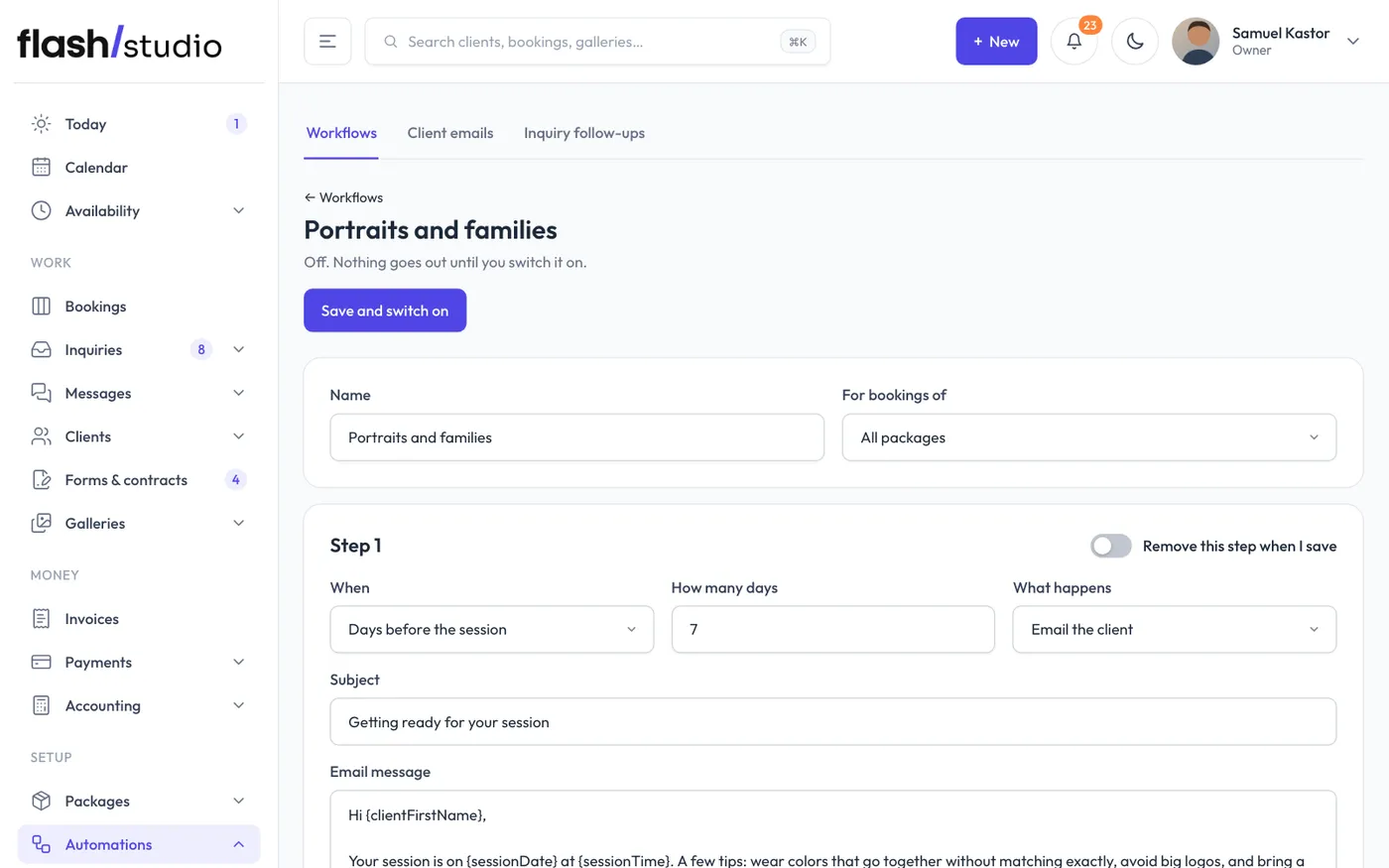
Give it a Name, then under For bookings of pick All packages, one package group (like Weddings packages), or Packages I pick and tick them under Which packages.
Set up the steps
Each step has:
- When: When booked, Days before the session, Days after the session or When the gallery is delivered (when the booking's gallery is first published).
- How many days: only for days before or after.
- What happens: Email the client, Send them a form or Remind me.
A step only shows the fields its kind uses:
- An email needs a Subject and an Email message. You can use fill-ins like {clientFirstName}, {sessionDate}, {sessionTime}, {packageName}, {location}, {portalLink} and {galleryLink}. Your sign-off is added at the end.
- A form needs the Form to send, and can have an Email subject (optional). The form goes to their portal and they get an email about it. It isn't sent twice if they already have it.
- A reminder needs What to remind you about. It shows up in your notifications, linked to the booking.
There are two empty steps at the bottom. Fill one in to add a step, and save to get more, up to 12. A step left empty is skipped. To take a step out, tick Remove this step when I save. Click Save workflow to keep your changes.
Switch it on
Click Save and switch on at the top of the workflow. It saves your changes first, then switches on. You can also use Switch on next to a workflow on the list.
Steps run once a day, and only for steps that fall due after you switch on. Turning a workflow on never sends a backlog of old emails. The same goes for a step you add or retime later: it counts from when you saved it.
Other things to know:
- Each step runs once per booking.
- Only booked sessions count. Cancelled bookings get nothing more.
- Sessions brought in with an import are left alone.
- A "days before" step only runs while the session is still ahead.
- A step more than a week late (if something held up the daily run) is skipped, not sent late.
Under Recently done you can see what went out and for whom, with a reason if something didn't go out. Emails also show in Messages > Sent emails.
Switch off or delete
Switch off stops it straight away. Nothing more goes out until you switch it back on.
To delete a workflow, open it, click Delete workflow, then click again to confirm. Its history goes with it.