
Set up your packages
Create the sessions clients can book, with a length, a price and a deposit.
A package is one kind of session a client can book, like a 60 minute family session. Every booking is for one package, and the package sets the length, the price and the deposit.
Add a package
- Go to Packages.
- Click New package, or Add package on the group it belongs in.
- Fill in the fields:
- Name: what clients see, for example "Family session".
- Group: which group it sits in. See Organize packages into groups.
- Length (minutes): how long the session runs. Clients only see open times that are at least this long.
- Price ($) and Deposit ($): the deposit is what the client pays online to book. It must be at least $0.50 and no more than the price. To have clients pay the whole price when they book, tick Take the full price when they book, instead of a deposit.
- Buffer before (minutes) and Buffer after (minutes): free time kept around this kind of session, for travel or setup. Nobody can book inside it. Leave them blank to use your studio default from Availability > Booking rules.
- Payment plan when you book it by hand: One balance payment, or the balance split into 2 to 6 payments. This is only the starting choice when you add a session yourself. See Add a session by hand.
- Short description (shown to clients): one line under the name on your booking page.
- Add-ons: tick the extras clients can pick with this package, or type a name and price to make a new one right here. See Offer add-ons at checkout.
- Leave Bookable ticked if clients can book it now.
- Click Create package.
Under the add-ons, the form says which contract is sent when the package is booked, with a link to Forms if there is none.
The rest of the price (the balance) is paid later, from the client portal or however you arrange it.
Change, pause or reorder a package
- Click the package name or Edit to change it, then Save. New prices apply to new bookings. Existing bookings keep the price they were booked at.
- Click the bookable pill to switch a package to off. It stays on this page but clients can't book it. Click again to turn it back on.
- Use the up and down arrows to change the order within a group.
- Waitlist when fully booked lets clients join a waitlist when there are no open times. See Waitlists.
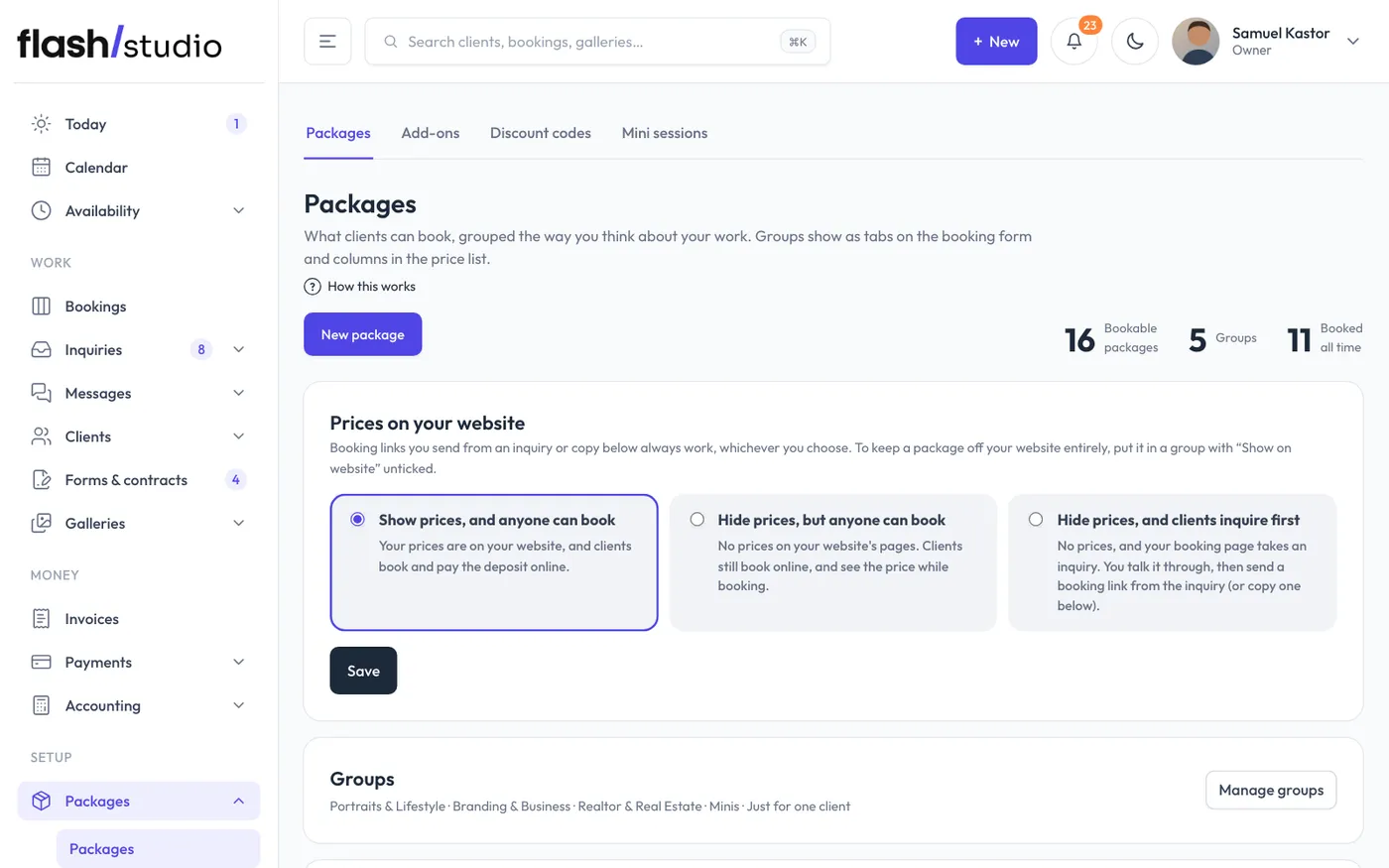
Prices on your website
Some photographers publish every price; others talk it through with each client first. Under Prices on your website at the top of Packages, choose one and click Save:
- Show prices, and anyone can book: your prices are on your website, and clients book and pay the deposit online.
- Hide prices, but anyone can book: no prices on your website's pages (the price list says Pricing on request). Clients still book online and see the price while booking.
- Hide prices, and clients inquire first: no prices, and your booking page takes an inquiry instead. When you're ready, send them a booking link from the inquiry (Send booking link on Inquiries), or click Copy booking link on a package and text it to them.
Booking links you send from an inquiry or copy from this page always open the booking form, whichever you choose. To keep a package off your website entirely, put it in a group with Show on website unticked: only booking links can book it.
Delete or archive a package
Click Delete on the package row. What happens next depends on its history:
- A package that has never been booked is deleted for good (Yes, delete). Open times reserved for it become open to any package.
- A package with any bookings, even cancelled ones, is archived instead (Yes, archive). It's hidden from your website, booking page and this list, but past bookings and payments still show it.
Archived packages are listed under Archived at the bottom of the page. Restore brings one back, switched off, so you can check it before turning it on.