
Open up times on Availability
Set the hours you're open each week, take days off, and add one-off times or back-to-back spots.
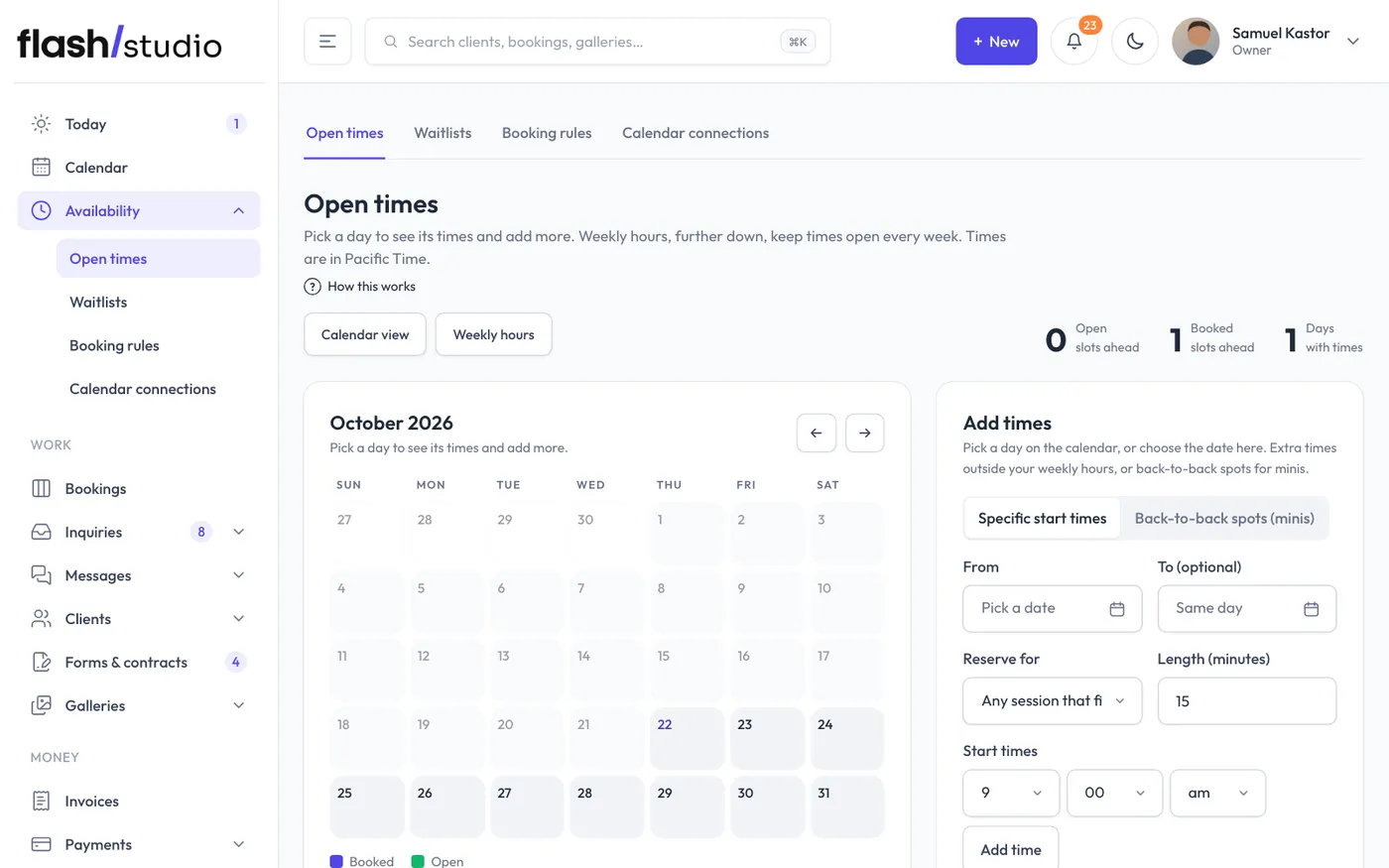
Clients can only book a time you've opened. You open times on Availability, in two ways: one-off times you add on a day, and weekly hours that repeat every week. The page opens on a month view: pick a day to see its times, with Add times beside it. Weekly hours is its own section further down. Times are in your studio's time zone, named at the top of the page (for example "Times are in Pacific Time").
Set your weekly hours
Weekly hours are the times you're open every week, like Tuesdays and Thursdays at 5:30 pm. Flashslash keeps them filled in a few weeks ahead on its own, every day. Booked sessions are never touched.
- Go to Availability and scroll down to Weekly hours, below the month and your upcoming times.
- Click Set your weekly hours (or Add more weekly hours once you have some).
- Tick the Days.
- Under Start times, pick a time and click Add time. Add as many as you like. Click the cross on a time to take it off.
- Set Length (minutes).
- Under For, keep Any package or pick one package, so only that package can use these times. Picking a package fills in its length.
- Choose how far ahead to Keep open ahead, from 2 to 26 weeks.
- Click Save weekly hours.
The page tells you how many open times were added. A time already open at the same start is skipped, so you won't get doubles.
Each set of weekly hours is listed with its days, times and package. On each one:
- Edit changes it, then Save. Its free future times are cleared and made again to match.
- Pause stops it and removes its free future times. Turn on brings them back.
- Delete removes it and its free future times (click twice to confirm).
Take a day off
In the list of upcoming days, click Take the day off on a day. Its free open times are blocked, and weekly hours won't add any to it. Booked sessions stay as they are.
Days off are listed under Days off in the Weekly hours card. Click Open it again there (or Open the day again on the day) to bring back the times it blocked.
Add one-off times
For extra times outside your weekly hours, use Add times, beside the month view. Click a day in the month first to see that day's times and add more to it.
- Keep Specific start times selected. Clicking a day in the month view starts on that date (past days can't be picked).
- Pick a From date. Add a To (optional) date to repeat the same times over a range of days.
- Under Reserve for, keep Any session that fits or choose one package so only that package can use these times.
- Set Length (minutes). Choosing a package fills in its length.
- Under Start times, pick a time and click Add time. Repeat for each start time you want on those days.
- Optional: tick days under Only on these days (leave empty for every day in the range), for example only Saturdays. Add a Private note (optional) only you see, or a Premium (optional, extra $) for times worth more.
- Click Add times.
Add back-to-back spots
For mini session days and other runs of short sessions:
- In Add times, click Back-to-back spots (minis).
- Set the date, Each spot (minutes) and First spot starts.
- Set either Number of spots or Or stop by (optional) for a finish time, plus a Break between (minutes).
- Check the preview of start times, then click Add times.
Each spot is booked separately.
How clients see your times
A client only sees open times long enough for the package they chose, and only times that are free for that package. They also don't see:
- Times that clash with your connected Google Calendar. These are marked busy in your calendar on this page. To connect a calendar, go to Availability > Calendar connections.
- Times too close to a booked session for the buffer you keep around sessions. Set a default in Availability > Booking rules, or per package on Packages.
Adding times also emails anyone on a waitlist that could now book. See Waitlists.