
Use the Calendar
See booked, open and held times by month, week, day or as a list.
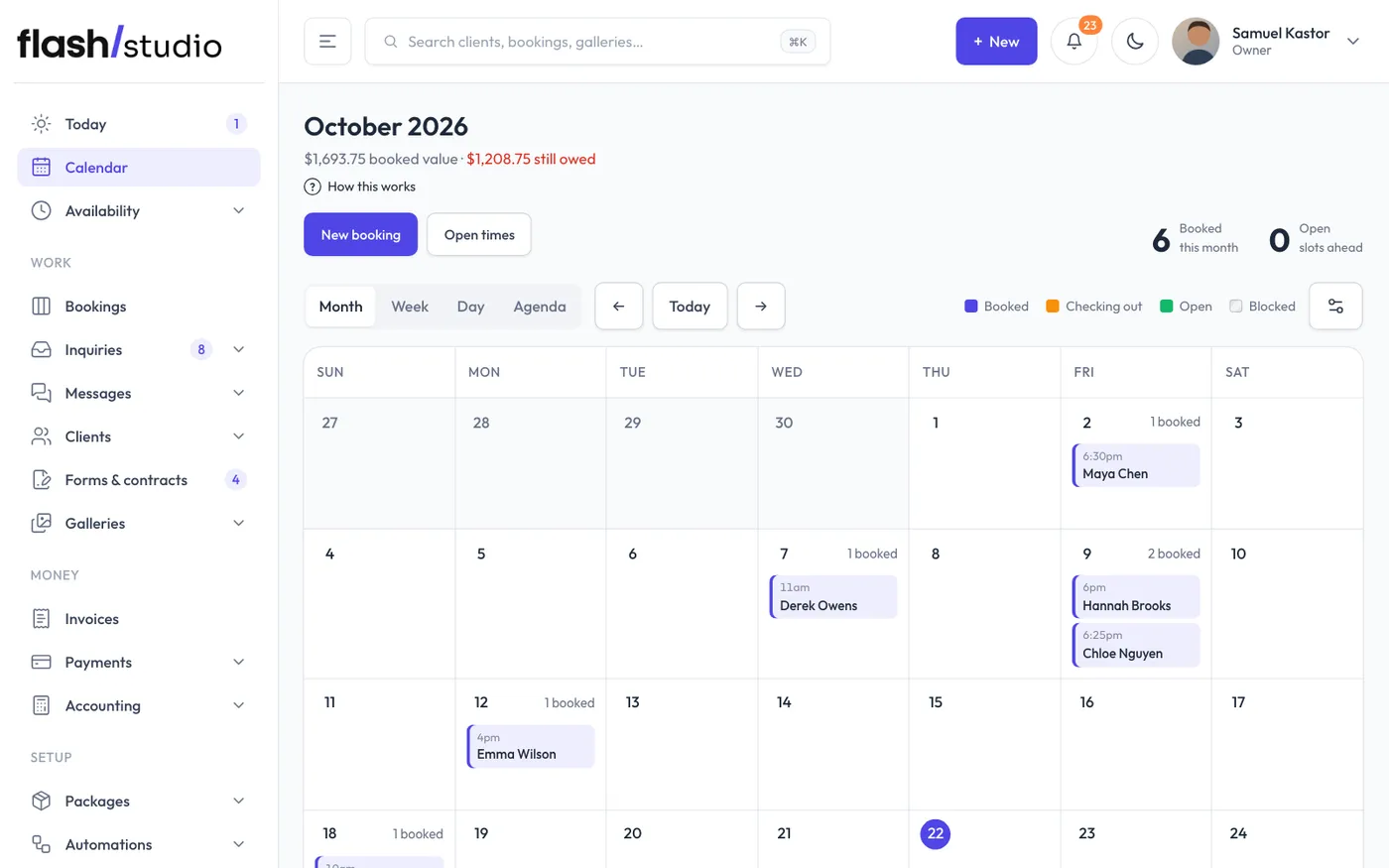
Calendar shows your sessions and open times together. The top shows the booked value and what's still owed for the period you're looking at.
Views
Switch between Month, Week, Day and Agenda (the next 30 days as a list). Use the arrows to move and Today to come back.
Colors follow the legend: Booked, Checking out (a client is paying a deposit right now), Open and Blocked. Open times show their premium or who they're held for. Open and blocked times that have already passed aren't shown, so nothing in the past looks bookable.
- In Month, click a day number to see everything on that day in a side panel. On an empty day, Open up time takes you to Availability on that date.
- Click a session to open its booking page. Sessions show flags like unsigned, no questionnaire or the amount due.
- Open times takes you to Availability to add more.
- New booking adds a session by hand. See Add a session by hand.
Session list
Under Month, Week and Day views, every session in that period is listed. You can edit a session's Location and Private notes there and click Save, or click Open booking for the full page.
Calendar options
Click the gear button to set, just for you: which view it Open on, which day the Week starts on, your Working hours (shaded outside them in Week and Day) and Show weekends. Your team sets their own.
See sessions on your phone
Your private calendar link is in Availability > Calendar connections, under Subscribe in Google or Apple Calendar. Add it to your phone's calendar and booked sessions show up and update on their own. The link is yours alone. If it's been shared by mistake, click New link and the old one stops working.