
Form and contract templates
Build the questionnaires, releases and agreements you send to clients, write one-offs for a single client, and keep templates in groups.
Forms & contracts holds your templates. A form asks questions. A contract has terms and ends with an e-signature.
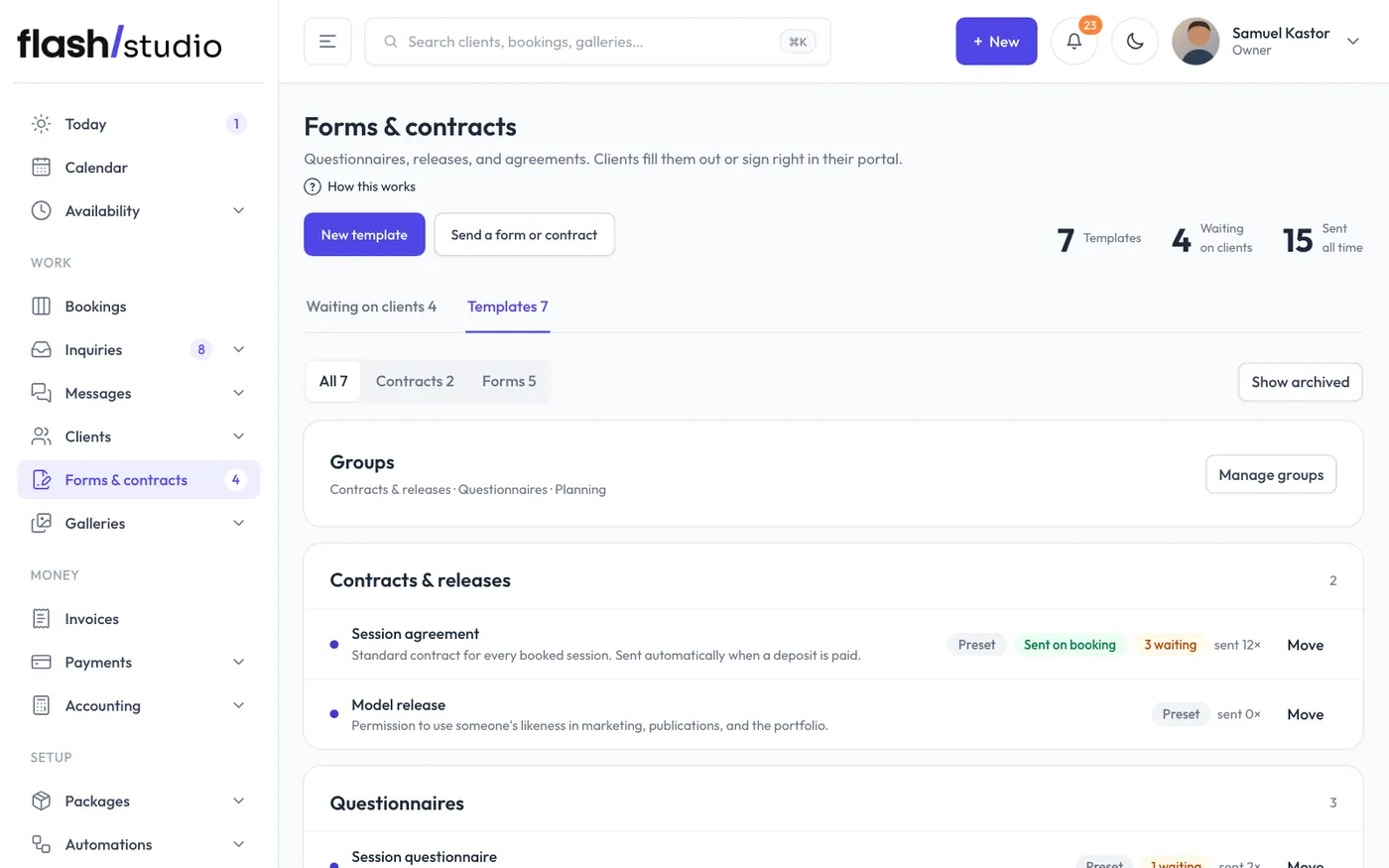
Your studio starts with ready-made templates: Session agreement, Model release, Session questionnaire, Wedding or elopement timeline, Branding session brief and Pet session info. They're yours to edit.
Making a template
- Click New template.
- Pick Contract template or Form template and click Start. Or, under "Or start from a ready-made contract", click Use this on the Wedding photography agreement, Mini session agreement, Portrait session agreement or Headshot and branding agreement.
- Give it a title, pick a group, and add a short description for yourself.
- For a contract, write the terms. The buttons above the terms put in details that fill in from the client, the booking and your studio when you send it, such as the client's name, the session date, the total price, what's been paid so far and the balance due.
- Add questions. Types include short answer, paragraph, email, phone, number, date, dropdown, multiple choice, checkboxes, yes or no, and section headings. On a contract these are extra fields filled in before signing.
- Click Save.
Editing a template never changes what you've already sent. Each client keeps the version they were sent.
Something for one client
Under New template, pick One-off contract or One-off form for custom terms or a few questions for just one person. Write it, click Save, then send it from the card below. Once it's sent it's kept on that client's record and listed under One-offs, not among your templates. To reuse it, click Save as a template.
Sending automatically when someone books
On a template, tick Send automatically when someone books. Under Sent automatically for, choose Every package or Only these packages and tick the ones it's for, then click Save. That way a wedding contract goes to weddings and a model release to minis.
For a contract, it goes out when the client's deposit is paid, or as the last step of booking if you turned on signing before paying in Availability > Booking rules. For a form, it's sent as their questionnaire. It also goes when you add a session by hand and leave the contract or questionnaire set to the package's one. The Session agreement has this on from the start.
Tidying up
- Duplicate makes a copy to change.
- Untick Active to hide a template from the send menu.
- Delete removes a template that was never sent. Once it has been sent, the button says Archive instead: it's hidden and stops sending automatically, but past copies stay. Show archived brings archived templates back into view.
Groups
Templates are shown in groups, such as Contracts & releases, Questionnaires and Planning. Click Manage groups to rename, reorder or delete a group, or type a name and click Add group. A group must be empty before you can delete it.
To move a template to another group, click Move on its row, pick the group and click Move. You can also change the group on the template itself.
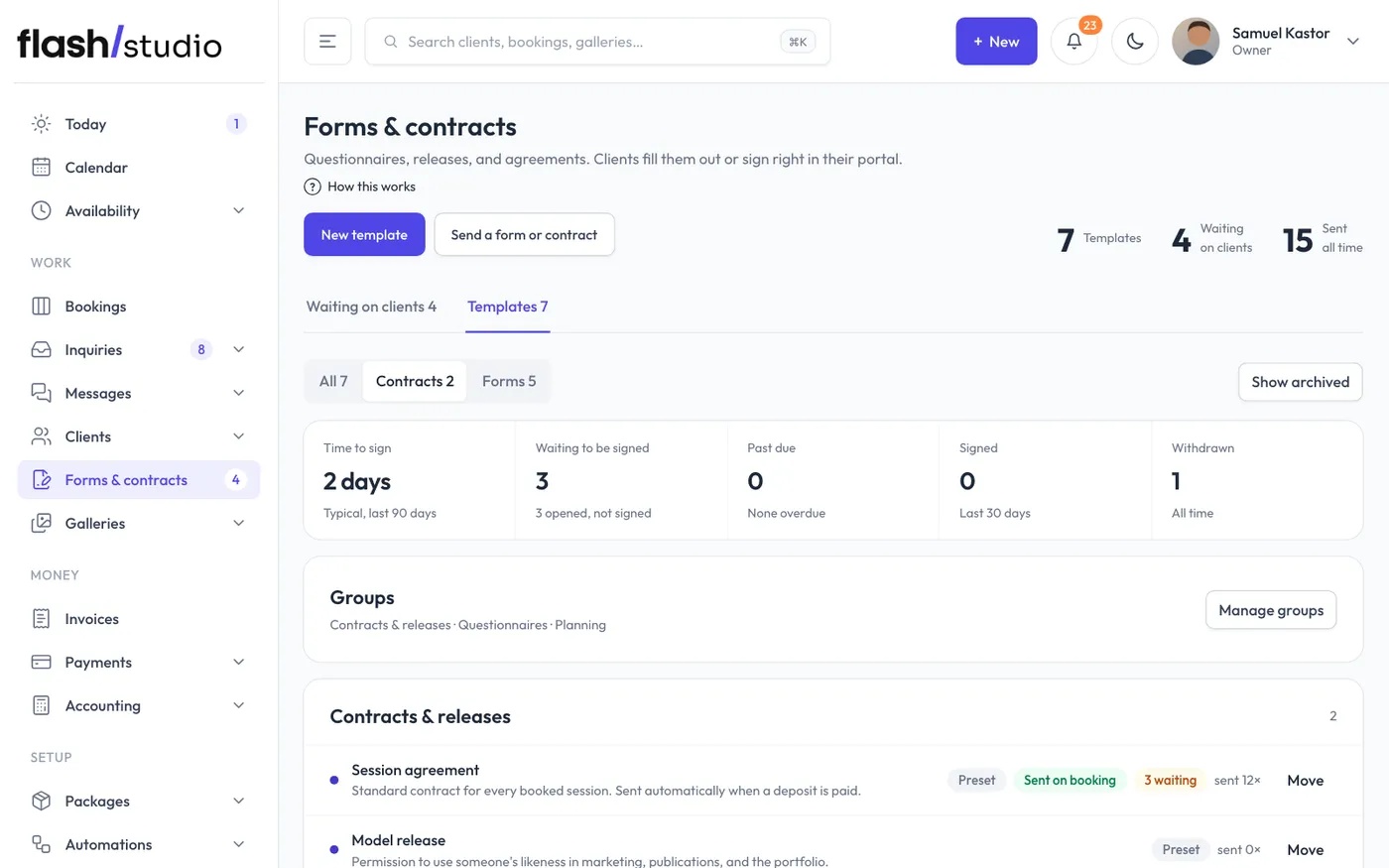
The page has two views. Waiting on clients is what you've sent and clients haven't finished, with recent activity below it. Templates is your reusable templates and groups, with All, only Contracts or only Forms. The page opens on Waiting on clients when something is waiting, otherwise on Templates.
The Contracts view starts with your contracts at a glance: how long clients typically take to sign, how many are waiting and past due, and how many were signed in the last 30 days.
Only owners and admins can make or edit templates.