
Website colors and fonts
Where your website's colors and type come from, and how to set colors for galleries and the client portal.
Your website
Your website's fonts come from the design you choose on Website > Design. Its colors start as the design's own, and you can change them.
Your own website colors
Open Website > Edit website and choose Colors on the left to pick your website's colors while you watch the preview.
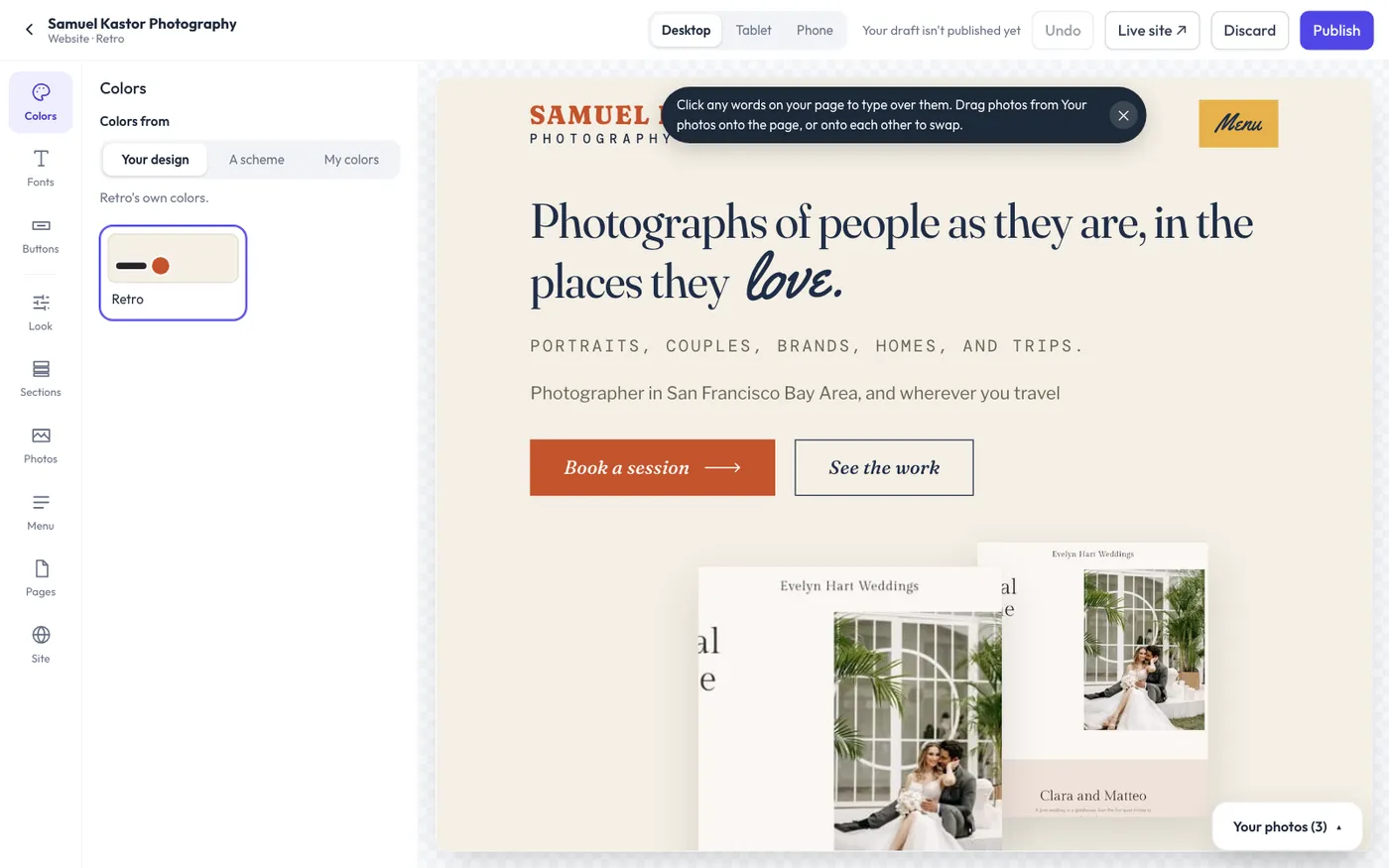
- Under Colors from, keep Your design for the design's own colors, pick a color scheme, or choose My colors.
- With My colors, choose a Page, a Text color and an Accent (buttons, links and highlights).
- The preview shows your colors as they'll look. Click Publish at the top to put them live.
Click a section in the preview to give just that section its own colors. Your colors work with every current design, so you can switch designs and keep them.
You can also adjust the look within a design:
- On Trailhead, pick a Palette; on Darkroom and Exhibit, the background.
Your own website colors, when you've picked them, take the place of these.
Your logo also does a lot of the work. See Logo, business details and tab icon.
Galleries and the client portal
Galleries and the client portal match your website unless you pick other colors. Each has its own card:
Client galleries, on Galleries > Gallery defaults: the sign-in screen and the photo gallery your clients see.
Client portal, forms and contracts, on Settings > Client portal: where clients sign in, pay, sign contracts and fill out forms. Clients get light and dark mode automatically, following their device, with a switch in the header.
For each one you can:
- Click Match website to keep it in step with your website's design, or click a ready-made set: Golden hour, Golden hour night, Cinematic navy, Gallery white or Ink and brass. A click saves it straight away.
- Or open Custom colors and set each color yourself: Background, Second background, Surfaces, Lines and borders, Text, Secondary text, Accent (buttons) and Accent on hover. A small preview shows how it will look. Click the save button under the colors.
The pill beside the title shows matches your website or own colors.
The admin
How the admin looks for you (light or dark, and its accent color) is set per person under Settings > Appearance. It doesn't change your website.