
Help center / Account & billing
Your password, email, two-step sign-in and signing out everywhere
Change your password or sign-in email, protect your account with a code from your phone, sign out on every device, and see who changed what.
Everything in this article is under Settings > Security (or Your account for team members).
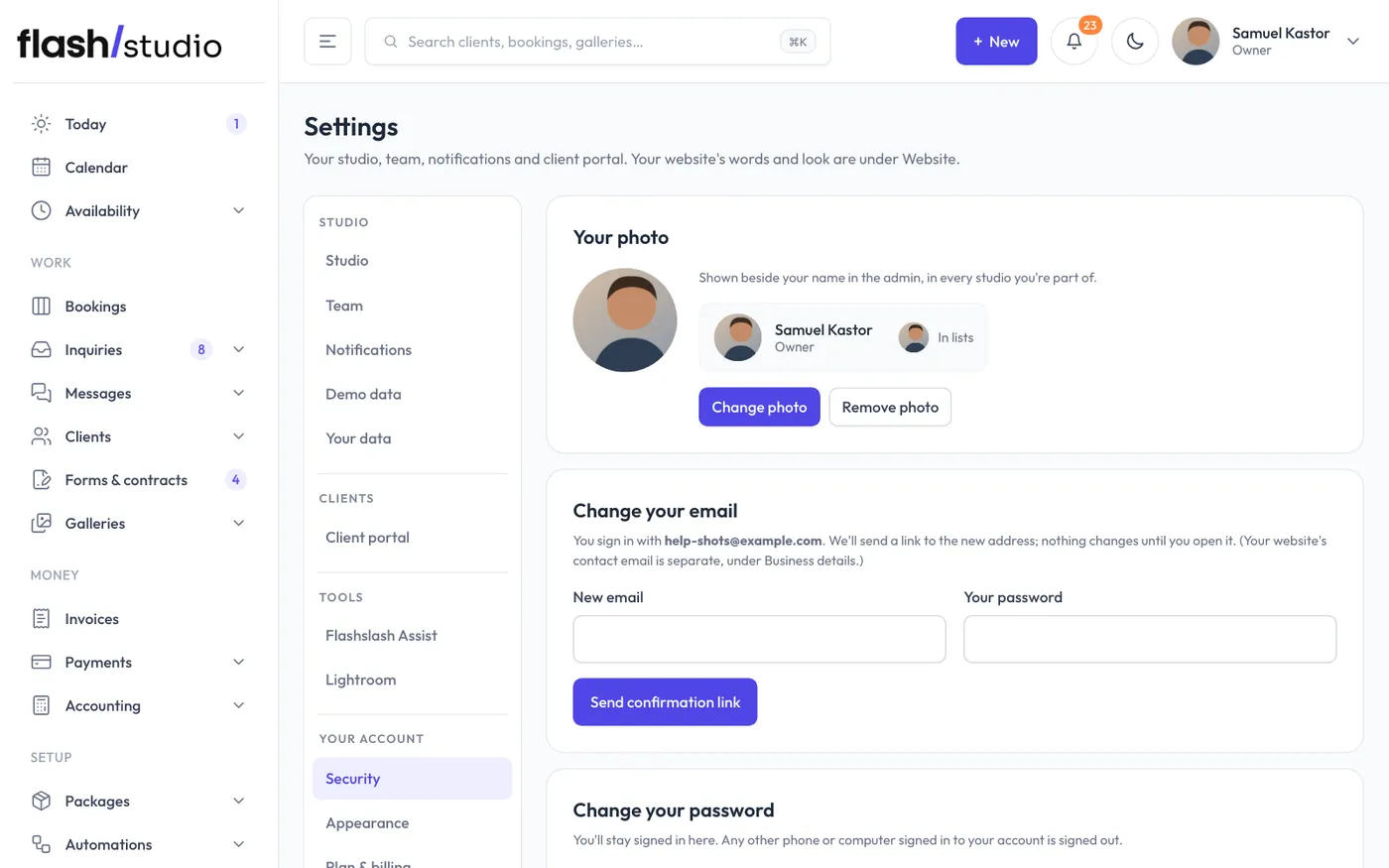
Change your password
Under Change your password, enter your Current password, then the new one twice, and click Change password. It needs at least 12 characters; a short sentence works well. You stay signed in on this device, and any other phone or computer signed in to your account is signed out.
Forgot your current password? Use Forgot your password? on the sign-in page instead.
Change your sign-in email
Under Change your email, enter the New email and Your password, then click Send confirmation link. Open the link we send to the new address within 24 hours. Until you do, nothing changes and you keep signing in with your current email. Once it's confirmed, sign in again with the new email; we also let your old address know it changed.
This is the email you sign in with. The email clients reply to is your Business email in Settings > Studio, and the one on your website's contact page is in the builder under Site > Contact. Both are separate from this one.
Turn on two-step sign-in
With two-step sign-in, signing in asks for your password and then a code from an app on your phone, so a leaked password alone can't get anyone in.
- Under Two-step sign-in, enter Your password and click Set up two-step sign-in.
- Scan the QR code with an authenticator app, such as Google Authenticator, 1Password or Authy. If you can't scan it, click Can't scan it? for a setup link.
- Save the backup codes somewhere safe. Each works once if you lose your phone, and they won't be shown again.
- Enter the 6-digit code your app shows now, and click Turn on two-step sign-in.
Next time you sign in, you'll be asked for a code after your password. Tick Don't ask again on this device for 30 days on a device you trust.
Lost your phone? Enter one of your backup codes where the sign-in page asks for a code.
Turn it off
When two-step sign-in is on, the card says On for your account. Enter Your password and A code from your app (or a backup code), then click Turn off two-step sign-in.
Passkeys
A passkey lets you sign in with Face ID, Touch ID, Windows Hello or a security key instead of typing your password. It only works on Flashslash, so it can't be phished, and it counts as two-step on its own.
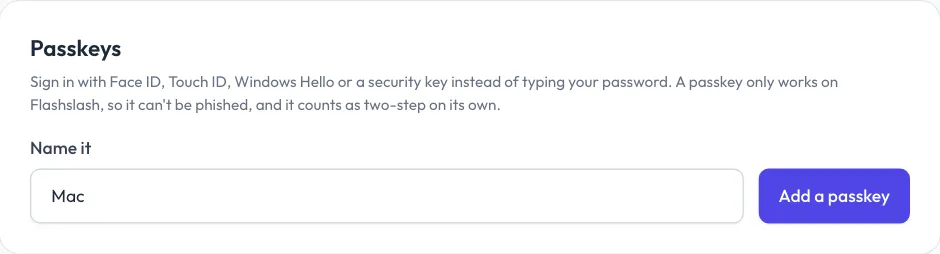
- Under Passkeys, give it a name (like "MacBook") and click Add a passkey.
- Follow the prompt on your device.
Next time, click Sign in with a passkey on the sign-in page. You can add one for each device, and Remove ones you no longer use. If adding one says to sign in again first, sign out and back in, then add it.
Sign in with Google
If the sign-in page shows Sign in with Google, you can use the Google account that has the same email as your Flashslash login. It signs you in to your existing account. If you've turned on two-step sign-in, use your password and code, or a passkey, instead: Google sign-in doesn't skip your code.
New studios can also sign up with Continue with Google on the last signup step, instead of choosing a password. The account uses your Google email, which counts as confirmed. To sign in later, use Sign in with Google, or set a password with Forgot your password? on the sign-in page. Two-step sign-in needs a password, so set one first if you want to turn it on.
Sign out everywhere
Sign out everywhere ends every session for your account: this device, and any phone or computer you've signed in on. Use it if you lose a device or signed in somewhere you shouldn't have. Click it, then click again to confirm, and you're signed out straight away. Other team members stay signed in.
Resetting your password with Forgot your password? on the sign-in page does the same.
To sign out on just this device, click Sign out in the side menu.
Flashslash support visits and the activity log
The owner and admins also see two lists here:
- Flashslash support visits: each time someone from Flashslash signed in to help you, with the reason they gave.
- Activity log: every change made in the admin, newest first, and who made it: sign-ins, payments, price changes, deletions and settings. The From column shows the device it came from, like "Safari on iPhone" or "Chrome on Windows". Changes made by Flashslash support are marked Flashslash support. Passwords are never recorded.