
Help center / For your clients
Your photo gallery
Opening your gallery, picking favorites, notes and lists, sending your picks, sharing and downloading your photos.
When your photos are ready, your photographer sends you a link to your gallery. It also shows under Your photos in your client portal.
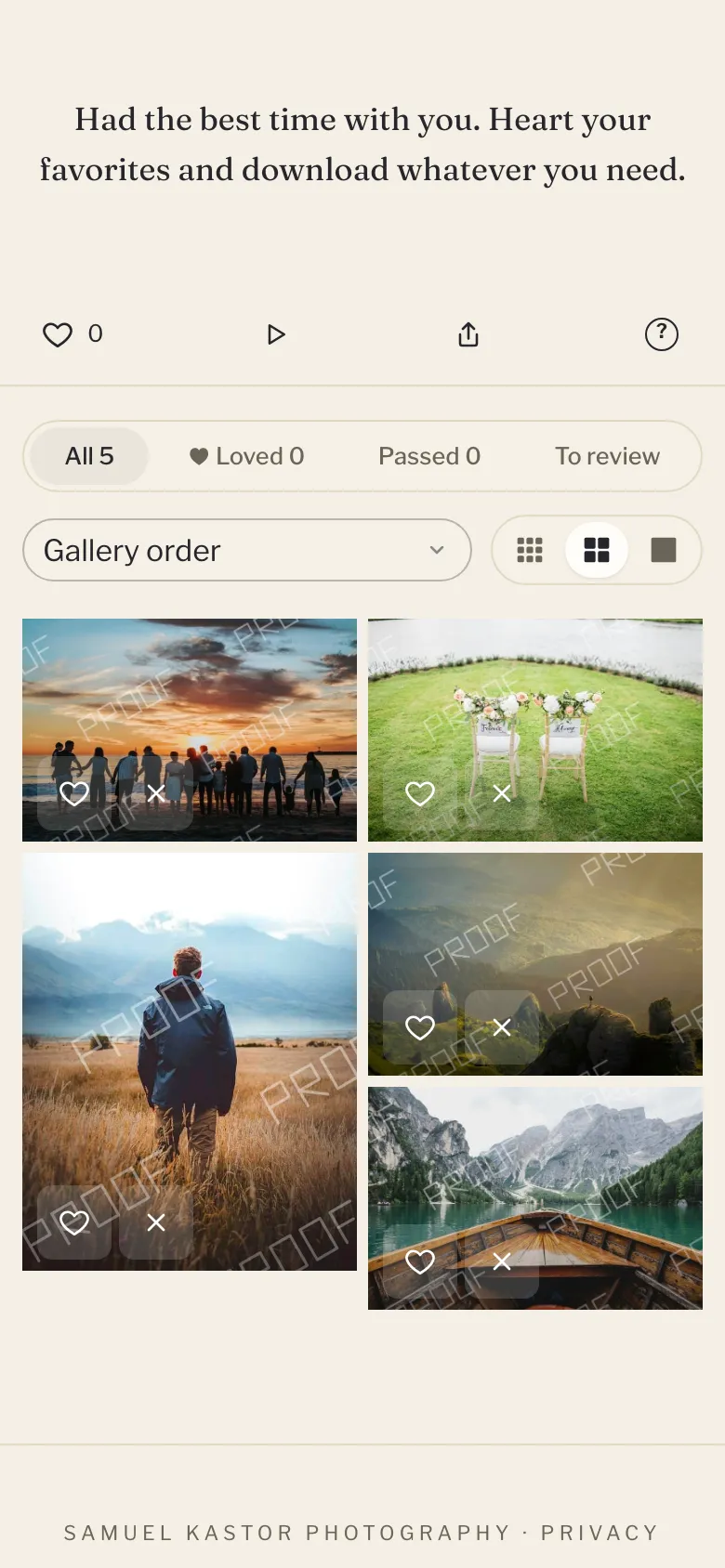
Opening it
Some galleries ask for your email or a password first. Type them in and click View gallery. Your device remembers you for 30 days. If you open the gallery from your portal, you go straight in.
The first time you open a gallery, a short guide explains how it works. Click Help (the ? button) at the top to see it again.
Looking around
- Scenes: if your photographer split the gallery into parts, like Getting ready or Ceremony, they show as tabs across the top. Click one to see just those photos, or All for everything.
- Tap a photo to open it full size. Use the arrows (or swipe on a phone) to go through them, and × to close.
- Photo size: the three buttons on the right show the photos small, medium or large.
- Slideshow plays the photos full screen, one every few seconds. Press the space bar or the play button to pause.
Picking favorites
- Heart the photos you love. Click the heart count at the top, or Loved, to see just those.
- Pass on the ones you'd skip. Nothing is deleted. It just helps you narrow things down.
- Stars: rate a photo from one to five, then choose Highest rated first to sort.
- To review shows the photos you haven't picked yet.
Your picks save as you go, and your photographer can see them. On a computer you can use the keys L (love), X (pass) and 1 to 5 (stars) on an open photo.
Notes and lists
- A note on a photo: open the photo, tap Note, write something like "Could this one be black and white?" and tap Save note. Your photographer sees it. Photos with a note get a small badge, and Notes shows them all.
- Your own lists: open a photo and tap Add to list to keep photos for an album, prints or anything else. Name a list the first time, then tick the lists a photo belongs in. Pick a list under Your lists to see it, rename it or delete it. Your hearts stay your main picks.
Sending your picks
When you've hearted your favorites, click Send my picks at the bottom of the screen. Add a note if you like and click Send. Your photographer gets the list right away.
You can still change your picks afterwards. If you do, click Send updated picks. If your photographer set a limit on how many you can pick, the bar shows it (for example "12 of 30 picked").
Sharing
Click Share to send the gallery link to family and friends. If your device has no share menu, the link is copied instead, ready to paste.
Downloading
Click Download, choose a Size, and click Download all. You get a zip file.
- Web & social: for phones, texting and social media.
- High resolution: for prints and wall art.
- Original (full res): the full-size files, if your photographer offers them.
Very large galleries come in parts. Pick each part and click Download this part. You can also download just the photos you loved, or one of your lists.
To download one photo, open it and click a size. Each size button shows the photo's dimensions in pixels.
Some galleries ask for a 4-digit PIN from your photographer before the first download. Type it and click Unlock (or Unlock downloads inside an open photo). Your device remembers it after that.
On iPhone or iPad, open a photo and tap Save to Photos to put it in your Photos app. See Saving photos to your iPhone or iPad.
Galleries for choosing, and buying photos
Some galleries are just for choosing favorites: the photos show a watermark and downloads come later. Others let you buy photos: click Buy, add your email, and choose all the photos or the ones you loved. Or open a photo to buy just that one.
Locked or closing galleries
If your balance isn't paid yet, you can view and pick favorites, but downloads unlock as soon as you pay. See Paying your balance. If your gallery has an end date, it shows at the bottom. Download your favorites before then. Once it closes, it no longer shows in your portal, and the gallery page shows your photographer's email so you can ask them to reopen it.