
Help center / Payments & money
Payment plans and autopay
Split a booking's balance into payments on set dates, with a pay link on each date or automatic card payments.
A payment plan splits what a client owes into payments on set dates. Plans are for bookings you made by hand. A client who booked online paid a deposit by card, and pays the balance as usual.
Only owners and admins can set up plans. The emails and card payments need Stripe connected (see Connect Stripe to take payments).
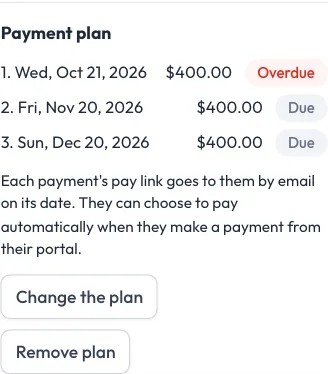
Set one up
- Open the booking. Payment plan is in the Money card.
- In Split the balance into, choose how many payments, from 2 to 12.
- Click Set up.
The payments are a month apart, with the last a week before the session. If that doesn't fit, they're spread evenly between a week from now and a week before the session. You'll see "Payment plan saved. Each payment's pay link goes to them on its date."
To start each package with the number you usually use, set Payment plan when you book it by hand on the package under Packages.
Why you can't split some balances
The first payment has to be at least a week away, and the last a week before the session. So a session that's less than about two weeks away, or has passed, can't be split. The card says "The session is too soon" or "The session has passed", "so there's no room to split the balance." Record payments as they come in instead.
Change or remove it
- Change the plan: change the Date and amount of any payment not yet paid, or add one more on the empty row. Clear a row to drop it. The payments have to add up to what's still owed, and each has to be at least $1. Click Save plan.
- Remove plan (click twice): the balance is one payment again.
If the balance changes after you set the plan (you change the price or add an invoice for extras), the card says the plan no longer matches. Change the payments so they add up to what's owed.
How each payment is paid
The card lists each payment with its date, amount and state: due, paid, overdue or autopay. Any payment counts toward the plan, earliest payment first: from their portal, by autopay, or one you record by hand.
Without autopay:
- On each payment's date, your client gets an email with a button to pay it from their portal.
- If it's still unpaid a week later, they get one more reminder.
Clients can also pay early. Their portal shows the plan and a Pay next payment button for the amount. Flashslash's usual balance reminders aren't sent for bookings on a plan, since the plan's emails take their place.
Autopay
When a client pays a plan payment from their portal, they can tick Pay the rest automatically on their dates, with the card you pay with now. After that:
- They get a note 3 days before each payment.
- On the date, the payment is charged to their saved card.
- If the card is turned down, they get an email with a link to pay, and you get a notification. It's tried again the next day, up to three tries in all.
The card shows "Paying automatically with" and their card. To turn it off, click Stop autopay (click twice). Their pay links then go to them by email on each date instead. Clients who want to stop it can reply to the note before a payment.
Tips and bank transfers
The last payment can carry a tip, and plan payments can be paid by bank transfer, when you've turned those on. See Tips and bank transfers.