
Work through inquiries and follow-ups
Track messages from your contact form, their status and when to follow up.
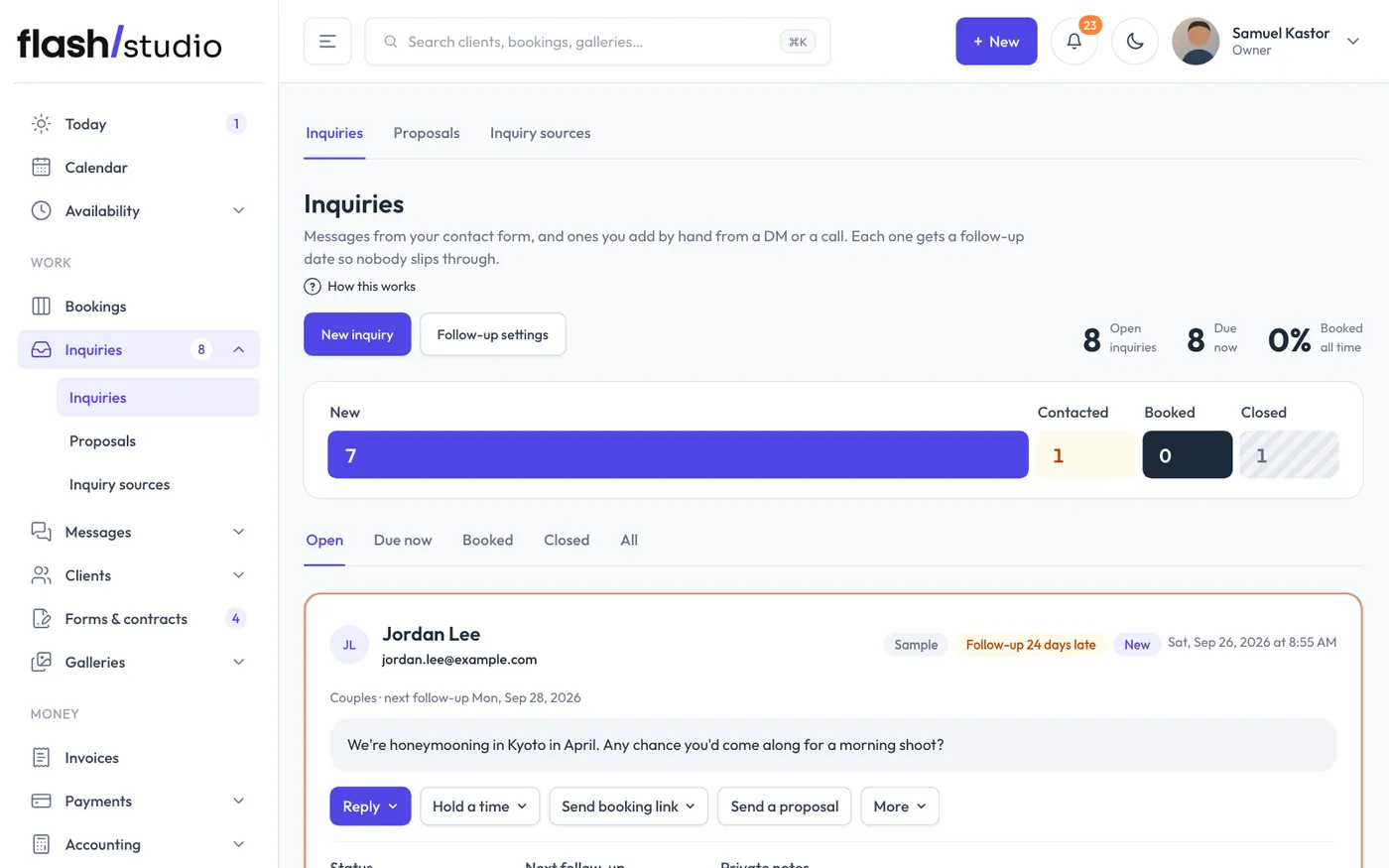
Messages from your website's contact form, and ones you add by hand, land in Inquiries. Each one gets a follow-up date so nobody slips through. The menu badge counts new inquiries or follow-ups that are due.
Add an inquiry by hand
Someone asked by Instagram DM, a text or in person? Click New inquiry, then fill in their Name, How they reached you, an Email or a Phone (at least one), the Session, When (optional) and What they're after, and click Add inquiry. It goes to the top of the list and gets the same follow-up reminders as one from your website.
Without an email you can still track it, set follow-up dates and mark it replied. Replies, holds, booking links, Book by hand and follow-up emails wait until you type their email and click Add their email on the inquiry. Due follow-ups for inquiries with no email are listed in your daily email so you can reach out yourself.
Statuses
- New: nobody has replied yet.
- Contacted: you've been in touch. Replying, or sending a follow-up, a booking link or a hold, moves a new inquiry here.
- Booked: they booked. This happens on its own when someone with the same email pays a deposit or you add a session for them by hand. Click the Booked pill to open the booking it became.
- Closed: not going ahead.
Use the tabs to see Open, Due now, Booked, Closed or All. Follow-ups that are due come first, the most overdue at the top. Everything else is newest first.
A due follow-up shows follow up today, or how late it is, like follow-up 3 days late.
Reply to an inquiry
Click Reply on an inquiry, type your answer and click Send reply. It goes from your studio's email, their answer comes back to your inbox, and the inquiry moves to Contacted. With Flashslash Assist on, Draft a reply writes a first draft from what they asked, your packages and your open times, and Draft a follow-up appears once you've been in touch. Add a note for it first if you like ("I'm booked in October"), then read it over and edit before you send.
Buttons on an open inquiry
- Hold a time and Send booking link: see Turn an inquiry into a booking.
- More opens the rest:
- Send follow-up email: sends your follow-up template right away and sets the next follow-up date. It emails straight away, so click it a second time to send.
- Send a proposal: offers them up to three packages to choose from.
- Book by hand: for a session arranged by text or in person.
- I replied myself: marks it Contacted when you answered from your own email.
- Snooze 3 days: takes it off your follow-up list for three days.
Status, follow-up date and notes
Under each inquiry you can change the Status, set the Next follow-up date and keep Private notes, then click Save. Until you do, the inquiry says Not saved yet. Press Save to keep these changes.
- Marking one Booked or Closed clears its follow-up date.
- If they have an email but no session yet, the menu says Booked (add the session next). Saving it opens their client page at the booking form, so the booking is made, not just labeled. See Add a session by hand.
Set up follow-ups
Click Follow-up settings (or go to Automations > Inquiry follow-ups) to choose:
- First follow-up after (days), Then every (days) and Stop after (follow-ups).
- The Subject and Email. You can use {firstName}, {name}, {sessionType}, {bookingLink} and {signoff} (your sign-off name, from Settings > Studio).
- Send follow-ups automatically. When it's on, the daily job emails due inquiries for you. When it's off, you see them on your Today page and in a daily email, and send each one yourself.
If a follow-up fails to send, it stays due. Check Messages > Sent emails for the reason.