
Sample data: exploring and removing it
Loading made-up clients and bookings to look around, and removing them before real bookings.
Every new studio starts empty. If you'd like to see how Flashslash works before your first client books, click Load sample data in the setup guide on Today (or under Settings > Demo data). You'll get made-up clients, sessions at every stage, payments, signed contracts, forms waiting on clients, galleries with client favorites, inquiries and notifications.
While it's loaded, a note at the top of every page says you're looking at sample data, sample inquiries carry a sample label, and sample notifications start with "Sample:".
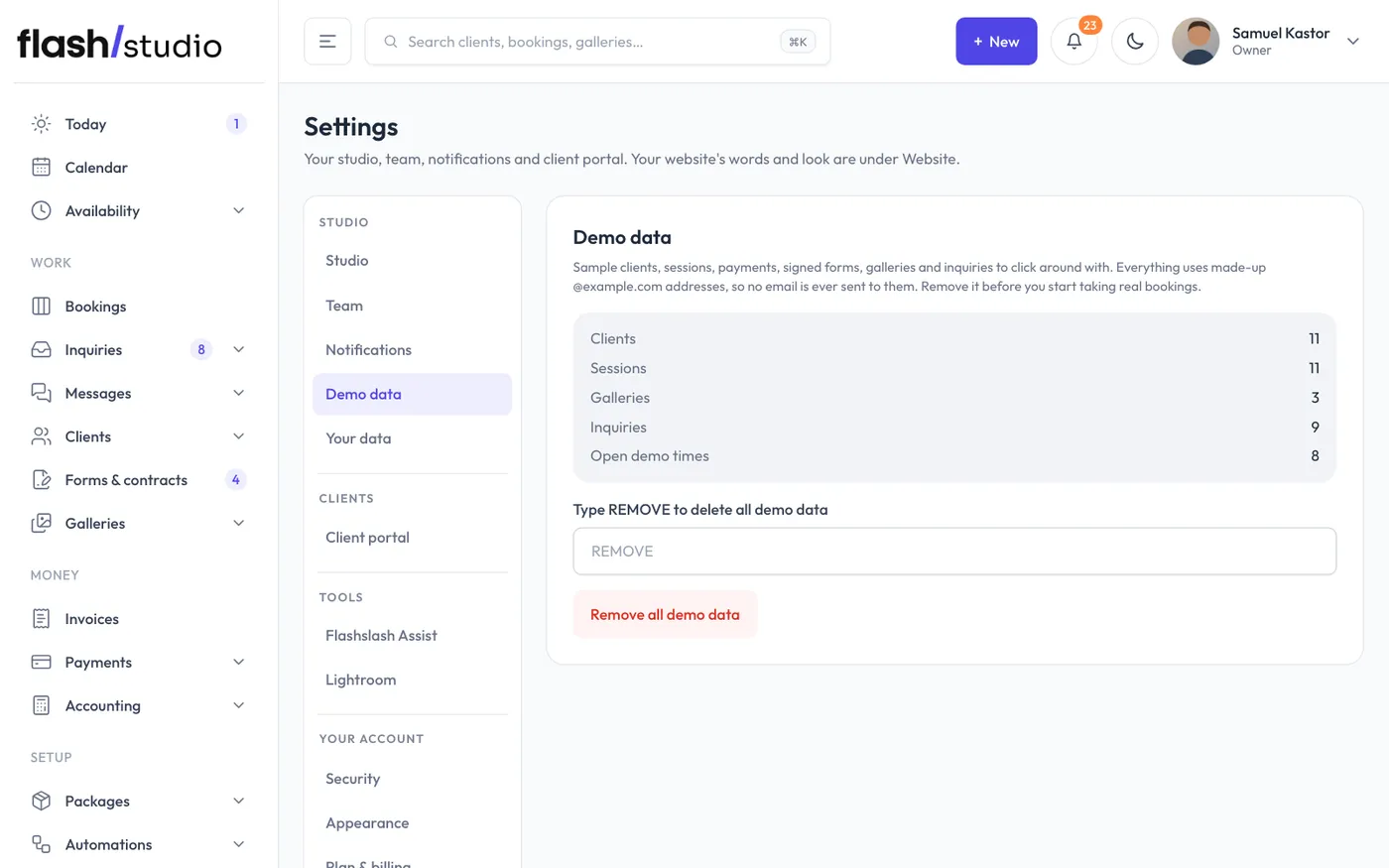
All example clients use @example.com email addresses, so no email ever reaches anyone.
When to remove it
Remove the example data before you start taking real bookings. Two reasons:
- The example open times show on your real booking page.
- The dashboard money figures include the example payments. Accounting already leaves them out.
Remove the example data
- Go to Settings and open the Demo data tab.
- Check the summary: how many clients, sessions, galleries, inquiries and open demo times will go.
- Type REMOVE in the box.
- Click Remove all demo data.
Only the example data is removed. Your own clients, bookings, packages and photos are never touched. When it's done, the page tells you how many example clients were removed along with everything linked to them.
Or use the Remove the sample data step in the setup guide on Today: click Remove sample data, then click again to confirm.
Load it again
If you want to practice again later, go back to Settings > Demo data and click Load demo data. It takes a minute or two, because it downloads sample gallery photos.