
Moving to Flashslash from another tool
Bringing your clients, upcoming sessions, contracts and workflows over, and what stays where it is.
Moving from HoneyBook, Dubsado, Pixieset, Studio Ninja or a spreadsheet doesn't mean starting from nothing. Here's what comes over, how, and what stays with your other tools.
1. Bring your clients and upcoming sessions
Download your client list from your old tool as a spreadsheet (a CSV file). In most tools it's under Contacts or Clients, then Export.
- Go to Clients and click Import clients.
- Under Choose your export, pick your CSV file.
- Under Check the columns, check which column is which. Flashslash matches what it can (name, email, phone, tags, notes, and the session date, time, type, location, total and amount paid). Change any that are wrong, and leave out what your file doesn't have. Email is the one column you need.
- If your file has session dates, tick Also bring in their sessions. Past sessions come in as completed and upcoming ones as confirmed, with what each client has already paid.
- Under Check and import, look over the preview of the rows, then click Import. The button shows how many clients.
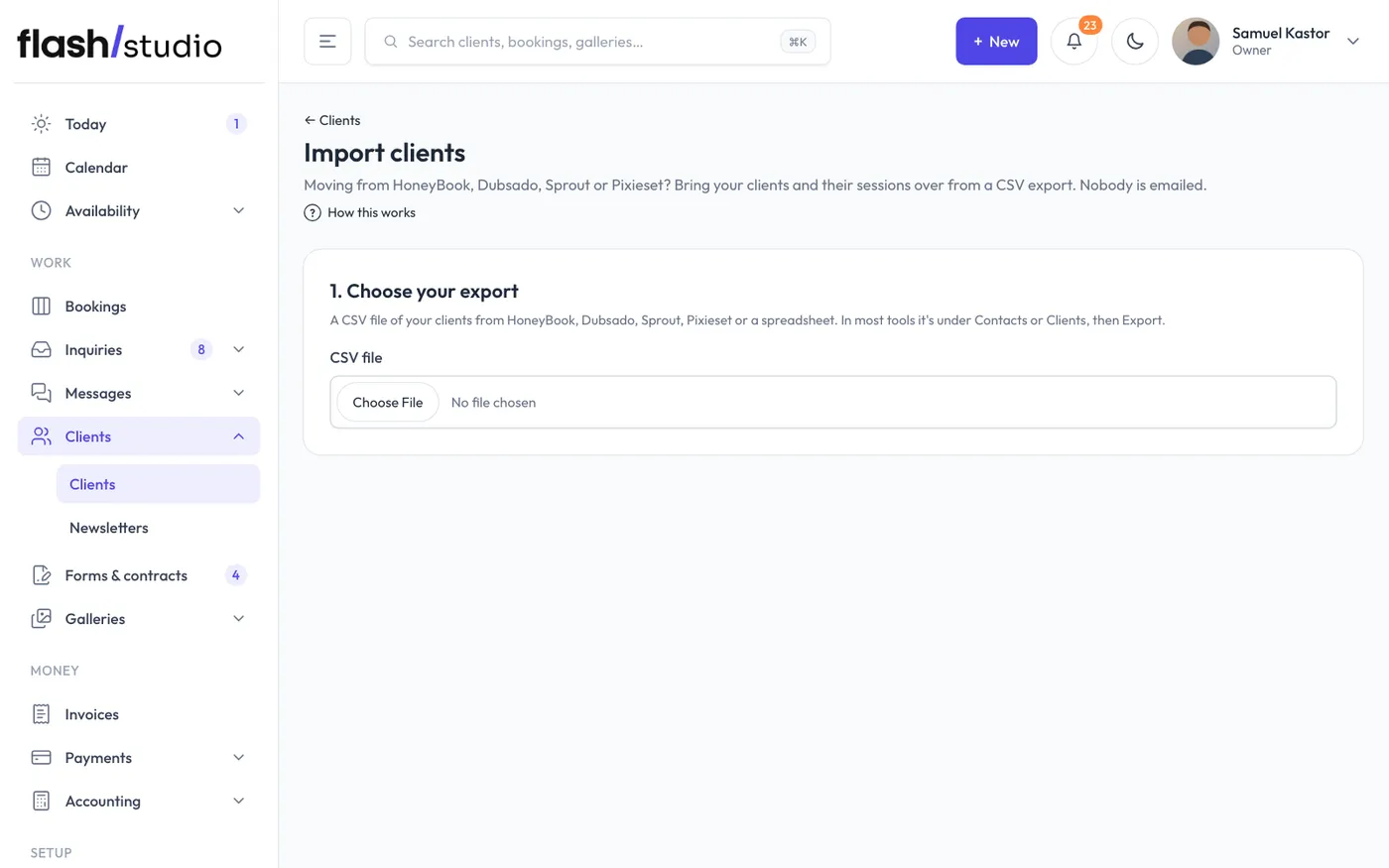
Nobody is emailed, and no contracts or questionnaires are sent. Clients already in Flashslash with the same email are matched, not added twice, and rows with no email, an email that doesn't look right or no name are skipped. The preview marks each one.
Changed your mind? Your imports are listed under Imports so far. Click Undo, then click again to confirm. It takes out the sessions that import added, and the clients it added who haven't been used since.
Only the studio owner and admins can import. Files can be up to 4 MB and 5,000 rows; split a bigger one and import it in parts.
2. Paste in your contract and questionnaires
Your old tool's contracts and forms don't import, but their wording does. Copy the text of your contract and paste it into a new contract template: go to Forms & contracts, click New template and choose Contract template. Add fill-ins like the client's name, the session date and the balance, and they're filled in for each client when you send it. Do the same with your questionnaire questions in a Form template.
Contracts your clients already signed stay in your old tool as their record, so download any you want to keep.
3. Start your workflows from a ready-made one
Go to Automations, open the Workflows tab and click New workflow. Start from a ready-made workflow for weddings, portraits, branding or minis, then change the emails, forms and reminders to match yours. A new workflow starts switched off, so nothing goes out until you're ready.
4. Galleries: new ones here, old ones where they are
Galleries your clients already have keep working where they are until they expire, so nobody's link breaks. There's no need to move old work.
For new galleries, upload the photos again in Flashslash: make a gallery, add your scenes, and drop in each folder's photos. See Create a gallery.
5. Point your domain when you're ready
Your Flashslash website starts as a coming-soon page while you add your words and photos, and your booking page works meanwhile. When the site is ready, click Launch my website on Website > Design, then connect your domain under Website > Web address. Your flashslashsites.com address keeps working and forwards to it. See Your website address.
6. Finish what's already open
Work that's halfway through, with an unsigned contract or a payment due, is easiest to finish in the tool where it started. New inquiries and bookings come to Flashslash from the day you switch.
What stays with your other tools
- Accounting. Keep QuickBooks or your bookkeeper for your books. Accounting exports the year as a spreadsheet for them. See Accounting.
- In-person card readers. Flashslash takes online payments through Stripe. If you take cards in person with Square or another reader, keep it, and record those payments on the booking by hand. See Record a payment made outside Stripe.
- Print labs. Clients can order prints from a gallery through your own lab, with no commission from Flashslash. The orders are under Galleries > Print orders.
- Email history stays in your inbox, and payments already made keep their records in your old tool.