
A client's page
Everything about one client in one place: sessions, money, forms, galleries, emails and their portal.
Click a name in Clients to open their page.
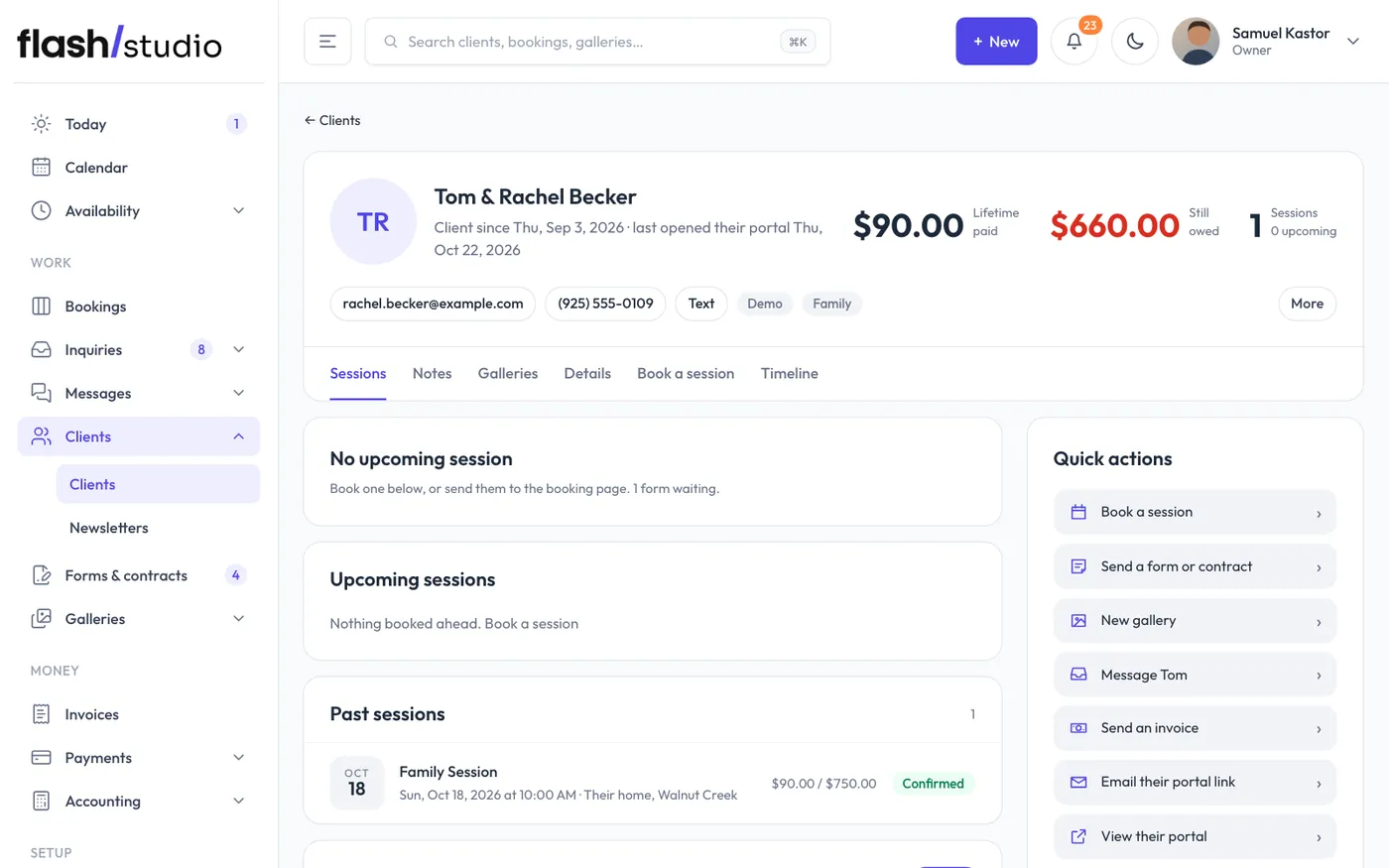
At the top
You see when they became a client, when they last opened their portal, their email and phone (with a Text link when they have a phone number), their tags, and three numbers: lifetime paid, still owed and sessions. A No portfolio use label shows when their signed contract asks you to keep their photos out of your portfolio and social media.
The buttons below:
- Book a session jumps to the booking form further down.
- New gallery starts a gallery linked to this client.
- View as client opens their portal exactly as they see it.
- Email portal link sends them a link to their portal. You only see "Portal link sent" when the email actually went. If it didn't, you're told so, and you can copy the link from their page instead.
- Download their data (owners and admins only) downloads a zip file of everything kept about them, for a client who asks for a copy.
- Reset portal link gives them a new link. See The client portal.
The main column
- Next session shows the date, package and location, and whether the contract is signed, the questionnaire is in and the session is paid. Click it to open the booking, or click a label to open what it's about.
- Sessions lists every booking with paid and total amounts.
- Timeline shows everything with this client in date order: inquiries, bookings, forms and contracts, payments, galleries and emails. Each line opens where it lives. A form for a session that was cancelled shows as "not needed (cancelled)" instead of waiting.
- Send a form or contract sends one or more straight to this client. See Sending a form or contract.
- Galleries shows their galleries with photo and visitor counts.
- Book a session by hand adds a session without online payment. Pick the package, date and start time, and optionally a location, a custom price, what was already paid and how, and which contract and questionnaire to send. Leave Email them a "You're booked" confirmation ticked to send the confirmation, then click Add session. See Add a session by hand.
The side column
- Private notes: see Private notes and client details.
- Details: edit their name, email, phone, tags and "About them", then click Save.
- Portal link: their private link, ready to copy.
- Remove client or Delete client (owners and admins only): see Deleting a client or erasing their details.
Fixing a client's email
If an email was typed wrong, change it under Details and click Save. Their bookings, galleries and forms still waiting are switched to the new address too, so everything from now on goes to the right place. If another client already has that email, you're told so and nothing changes.